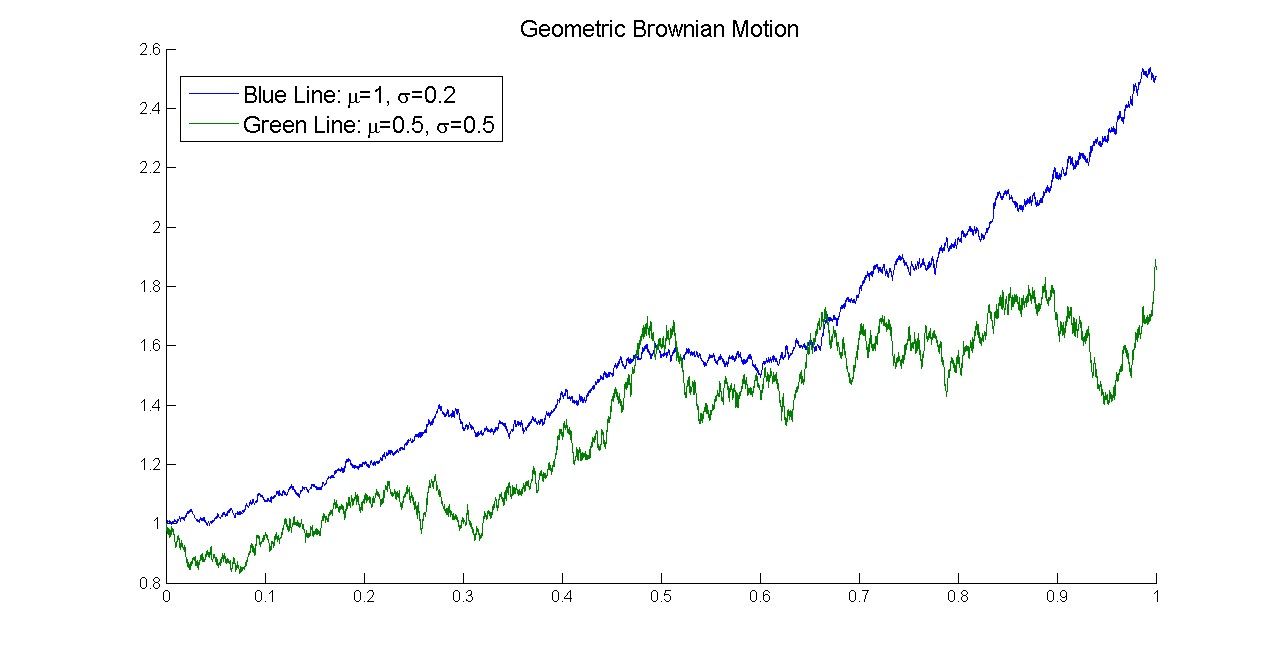
Information visualization is the process of representing data in a visual and meaningful way so that a user can better understand it. The principles of information visualization guide how to turn data into visuals that reveal meaning, guide attention, and support decisions. They show you how to structure, simplify, and highlight information so users and audiences can find patterns, understand context, and act on insights with speed and confidence in a well-presented, relatable source of truth.
Explore valuable points about showing meaningful information to present your target audiences with, in this video with William Hudson: User Experience Strategist and Founder of Syntagm Ltd.
From Numbers to Narratives: Get Stakeholders’ Buy-In with Information Visualization
We live in an information-saturated world, with countless screens constantly updating to reflect wave after wave after wave of new information for millions of people every moment. Whenever people reach for a mobile phone, turn on a desktop, or attend a presentation, sooner or later something will be on show for them to consume.
However, users on their phones or computers or audience members at a presentation will have a difficult task if all they find is raw information or data. Numbers can make sense “in the wild” to some specialists who have the training and the eye to “decode” them. However, what about those who can’t: the people who need a frame of reference or clearly introduced, well-presented visuals of what they need to know and why they should care? The reality is that humans make better decisions when they can see the story in the data.
That is the promise of information visualization done well. When you apply a few reliable principles, people can find meaning faster in your product and stay engaged with your slides. You can reach for practical patterns which you can reuse in dashboards, product screens, and talks, along with simple checks to help you keep your visuals clear, credible, and audience-friendly. Impact and responsiveness depend on this.
More specifically, what helps you and your target audience is a group of benefits of information visualization:
Clarity and Speed
Good visuals cut down on reading and hunting; a picture really can be worth a thousand words. You help people think clearly when you show information clearly. People can grasp the point and act sooner when it’s served up well, right there.
Trust
When you show a clean structure, honest scales, and clear labels, you signal rigor and that you know your material. That confidence makes collaboration easier and can help win over a roomful of stakeholders who see and get what’s important.
Get more from how you present carefully crafted information to your target audiences in live presentations through trust frameworks, in this video with Morgane Peng, Managing Director, Global Head of Product Design and AI Transformation.
Memory and Action
People remember images and structure better than they remember dense text. A strong headline that leads into a relatable meaning and a clear next step turn insight into decision, slashing the TL;DR (“too long; didn’t read”) risk of an ignored wall of facts.
Better Conversations
Visuals help cross-functional teams talk about the same thing and stay interested. They reduce ambiguity and keep meetings on track. Information visualization turns numbers, categories, and relationships into visual form so you can spot patterns, compare items, and see change over time. Among UX (user experience) design teams and other stakeholders, it may be a simple sparkline or a full analytics view. In UX presentations and other types of public speaking, it includes charts, diagrams, and annotated screenshots. In both settings you want the right people to understand the right message at the right moment, and then take the next step on board with you.
Better Pacing
In presentations, you can deliver the right amount of information to suit the purpose of each point and stage your message so the audience follows your flow, rather than racing ahead or tuning out. Take time as your ally and pace your presentation with well-explained visuals that do the job required.
“Graphical excellence is that which gives to the viewer the greatest number of ideas in the shortest time with the least ink in the smallest space.”
― Edward R. Tufte, Statistician and Professor Emeritus of Political Science, Statistics, and Computer Science at Yale University, from The Visual Display of Quantitative Information
Use Information Visualization Principles to Lead, Not Just Inform
You have these four principles, which combine well-supported concepts from human-computer interaction (HCI), perception, and presentation practice, to help in digital products and in slides.
1) Principle of Purpose and Question Clarity
Define the decision and the target audience before you draw or generate a visual. Every visual should answer a specific question for a specific person, and so you’ll want to match the visual to the question or point you are making.
Write the question in plain language and then choose the least complicated visual that answers it.
In UX (user experience) design: A sorted bar chart beats a radial chart for category comparison. A simple trend with a threshold line beats a dense multi-metric mashup when someone needs to spot something like churn risk. You want to invite exploration where it helps, and hide detail when it distracts.
On slides: Replace vague titles with headline conclusions. If the question is “Did the new onboarding help?” a useful title is “Onboarding change cut support tickets by 22 percent.”
2) Principle of Appropriate Encoding and Scale Integrity
Match data to the right marks and keep scales honest. Position on a shared axis is more precise than angle or area for comparison; people can get their minds around the realities you’re delivering to them when they see data visualized well.
In UX design: Use bars for categories, lines for time. Start bar axes at zero. Be careful with pie charts; use pies only for a few parts of a whole when a rough share is enough.
On slides: If you tighten a y-axis (the vertical axis) to show small changes, explain why. Avoid 3D and perspective since they’ll distort values.
Use a fact about perception to your advantage regarding position and alignment. People compare aligned values more accurately than angles or areas, and if they can compare accurately, they can trust you more.
3) Principle of Hierarchy and Attention Control
Guide the eye with structure: a strong visual hierarchy will do the job and help reduce cognitive load. Create one clear entry point and then clear levels. Use size, weight, alignment, spacing, and restrained color. A single saturated color can call attention to the key mark you want people to see in a structure they’ll recognize.
In UX design: Give each view a dominant key performance indicator (KPI) with a clear label. Group related metrics and keep headings consistent.
On slides: Lead with a strong headline. Stage supporting visuals so they don’t tidal-wave at viewers’ eyes all at once. Add short annotations for peaks, troughs, and thresholds.
You want to make the best use of preattentive features to draw your audience to the point on the screen. Size, color, orientation, and simple motion pop out fast; use one to highlight the key point.
Secure a strong grasp of what KPIs are and why they matter to various audiences, in this video with Vitaly Friedman, Senior UX Consultant, European Parliament, and Creative Lead, Smashing Magazine
Another tool you can use to great effect is Gestalt grouping. Gestalt psychology suggests (and viewers’ eyes can confirm) that proximity, similarity, and connection form structure. Tight space within groups and generous space between groups signal logic, which helps viewers digest data and trust you at the same time.
Secure a greater grasp of Gestalt principles with this video from Mia Cinelli, Associate Professor of Art Studio and Digital Design, University of Kentucky.
4) Principle of Progression and Interaction
Reveal detail when it helps and hide it when it distracts.
In UX design: Begin with an overview. Let your target audience filter or drill down, themselves. Keep controls simple and visible, vital for an intuitive experience.
On slides: Reveal one step at a time so your voice and the visual stay in sync. If you’re using animations, they should support the story, not show off effects.
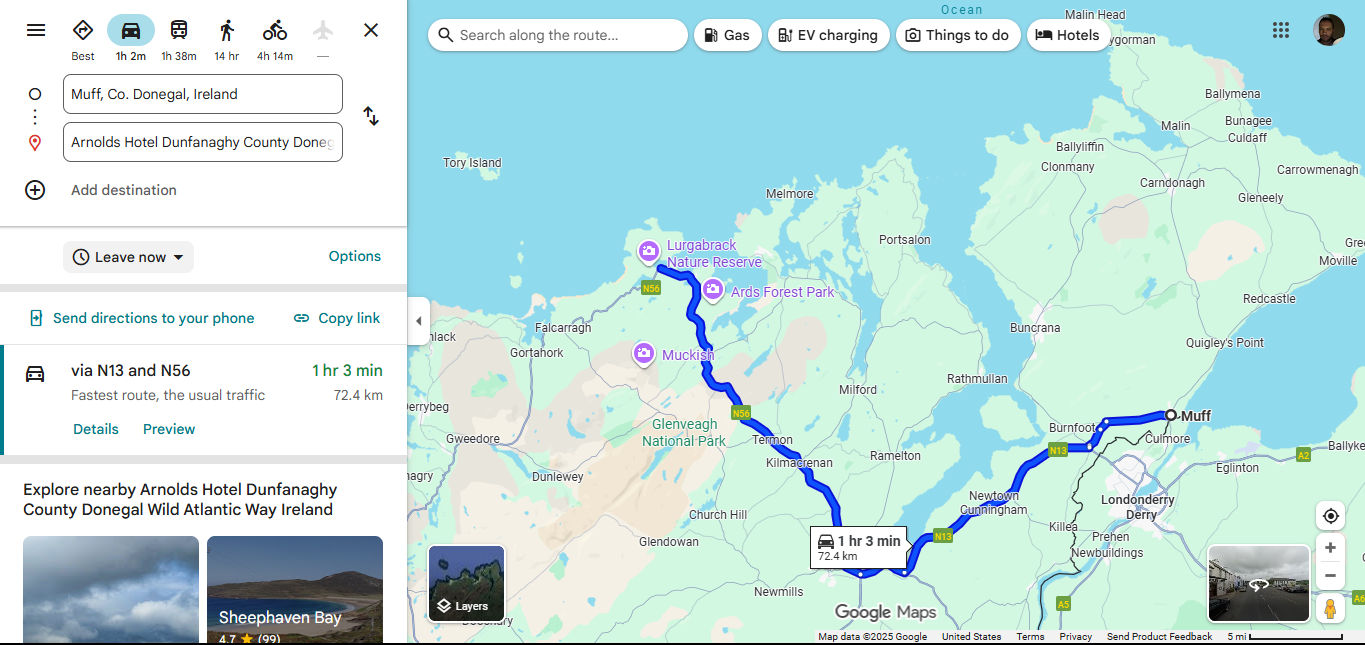
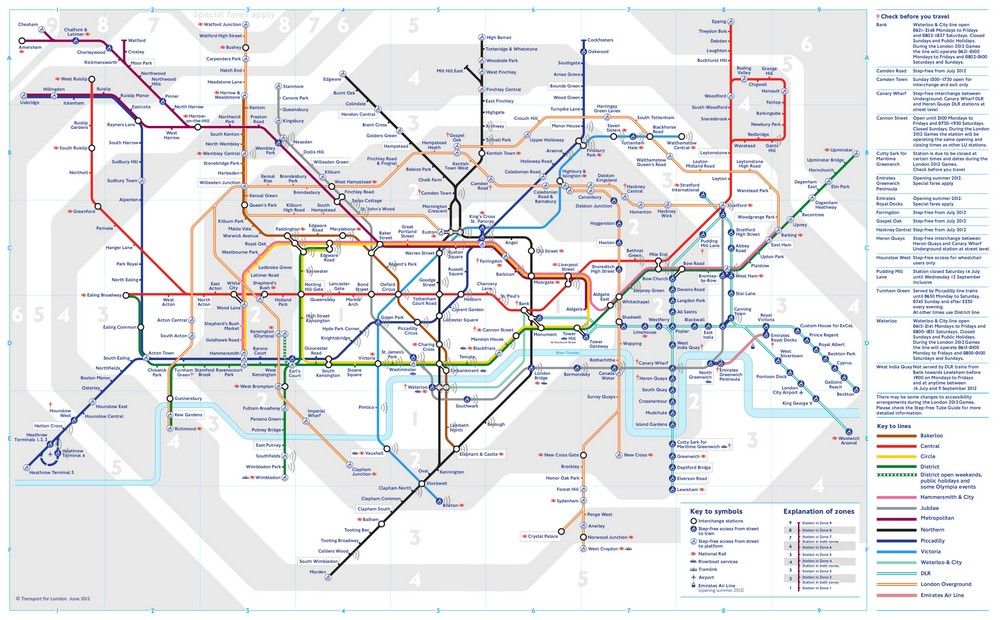
Two ways to capture the information: straightforward driving directions and a map with potential places of interest to perhaps call in at on the way or check out later.
© Google, Fair use
How to Get and Keep Audiences on Board with Your Information Visualization
Whether the target audience is users on mobile screens or viewers in your presentation, try this playbook to design for screens in a way where you can command attention and get results.
Step 1: Define The Question or Decision and The Audience
Write the question or decision and the audience. Capture the question you want to ask or the decision you want to support and who will make it. Determine what needs to be meaningful to them and why; have this totally clear, and it’s where a stakeholder map comes in extremely handy.
Discover how to get a clear idea of who needs to know what when you have to present to audiences, using a stakeholder map, in this video with Morgane Peng.
Write a meaningful title. State the take-away, not the topic. For example, don’t put, “Results”; instead, put: “Checkout completion rose 12 percent this quarter.” Strong headlines carry real information and set expectations for both users and audiences.
Include the right level of detail. Meet people at their level of interest and knowledge base. Give executives outcomes and impact: the bottom-line material. Give practitioners the diagnostics they need. Give users what they need to know so they can make solid decisions in the moment and without confusion, and they’ll be able to trust more in a brand that proves empathy with them.
Explore why empathy is key in any design and how to build it, in this video.
Step 2: Pick The Right Chart
Choose for the task, not for novelty or show. For example, business stakeholders will tend to want the “short version.” Users on their phones will also tend to prefer a quick view of results, such as a pie chart to show simple spending habits on a banking app. Here are some examples of which chart to use for which purpose:
To compare categories, use sorted bar charts. Use horizontal bars for long labels.
For change over time, use line charts for continuous data. Keep gridlines light and mark key events sparingly.
For part to whole, use stacked bars for accurate comparisons across categories. Pies are helpful only when there are a few slices and rough proportions are fine.
For distribution, use histograms, box plots, or dot plots to reveal spread and outliers.
For relationships, use scatterplots to show correlation; add a simple trend line if it clarifies.
Try this fast test to see which information visualization method might work best. Sketch two options and then ask a colleague to answer the main question in ten seconds, such as “How many users are we losing to churn since this new feature came out?”. Choose the one that gives the answer fastest and makes it most accurate.
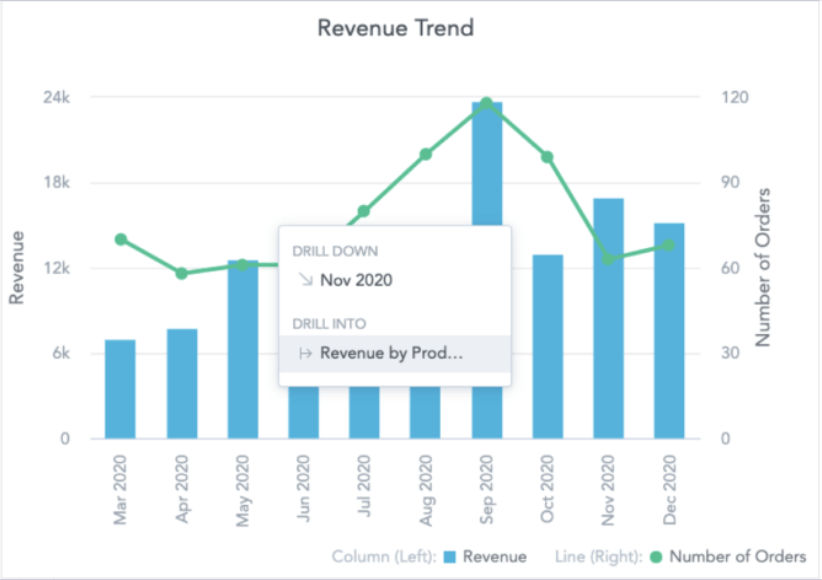
The numbers clearly show what’s going on, especially a good September for the brand.
© GoodData, Fair use
Step 3: Sketch, then Build
Now it’s time to try your visualization choice, so:
Start on paper and explore layout and sequencing before you commit.
Build the simplest working version of, for example, a chart and add only what improves comprehension.
Use progressive disclosure. In product design, show an overview and let users drill in for more features or detail when they need them. In public speaking and talks, reveal content step by step so people follow your voice instead of reading ahead.
Peak at the power of progressive disclosure in this video.
Step 4: Establish Hierarchy
Make the important thing the most visible thing with a strong visual hierarchy.
Explore how to get a good visual hierarchy working for you and helping get audiences on board with what you want them to see, in this video.
Use one clear entry point. Lead with the key KPI or the headline.
Levels that read instantly. Keep spacing between title and content larger than spacing between paragraphs.
Group related items. Proximity signals structure and a confident designer or presenter. Pair proximity with similarity and visual alignment to help audiences scan even faster.
Use color sparingly. Fix the structure first and then use color to code categories or to highlight what matters.
Direct labels typically beat legends. Place labels near marks to reduce eye travel; if audiences have to keep looking from place to place, they’ll get tired and perhaps become tired of the presentation.
Check contrast and readability. Use font sizes and line weights that work at a distance. Choose colors that still work for common color vision differences; some viewers may have color blindness to some degree.
Discover how to reach more audience members more effectively, in this video about color blindness and how to accommodate it.
Step 5: Annotate and Title
Bring some storytelling in presentations into the picture and:
Turn topics into messages. “Support tickets fell after new onboarding.” beats “Support tickets by week.”; you’ve got a happy ending in there, too.
Annotate to explain, not decorate. Label notable highs, lows, and thresholds with short, helpful callouts. Keep decimals to meaningful precision and scale.
Use honest scales. Bars should start at zero. If a line chart uses a non-zero baseline to show small but meaningful shifts, label it and explain why it’s like that.
Step 6: Cut and Simplify
Let the stories in the charts help convince your audience, not prettiness. So:
Cut decoration. Remove drop shadows, heavy gradients, and any ornaments that don’t carry information.
Avoid distortion, especially important in live presentations. Skip 3D and perspective effects; they can trick the eye, confuse, and harm the trust you want to foster.
Avoid dual y-axes. They can confuse quickly and take a great deal of explanation. If you must use them, label very clearly or normalize values to compare on one scale.
Use color with discipline. That means encode, don’t decorate. Use categorical palettes for discrete groups, sequential palettes for ordered values, and diverging palettes when you show values above and below a meaningful midpoint. Limit hues to keep structure clear.
Use a clear layout and type. Use a simple type system of one or two families with a clear size and weight scale. Left-align longer text for Western audiences. Use a grid to keep space and alignment consistent. Give content room to breathe with white space so the main point pops.
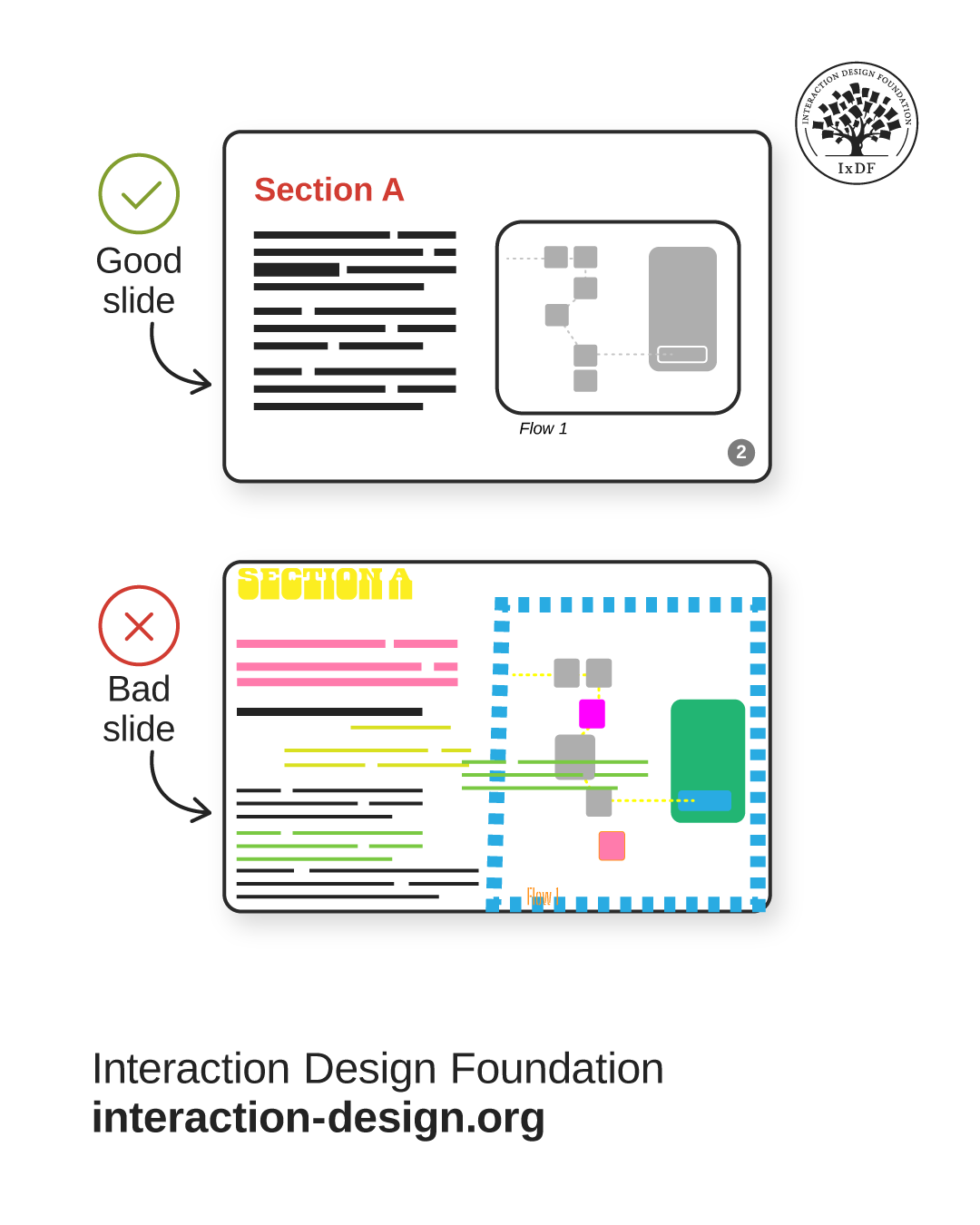
Information visualization includes the framework that accompanies charts or graphs. Beware of chartjunk and remove nonessential ink and color. Get your alignment sharp and clean and don’t overload slides. Move reminders to speaker notes and keep visuals simple.
© Interaction Design Foundation, CC BY-SA 4.0
Step 7: Test with Fresh Eyes and Deliver Smoothly
Now it’s time to see if what you have to present works.
Do a ten-second test. Ask someone new to tell you the point or take-away in ten seconds. If they can’t, adjust hierarchy, labels, or chart choice until they know exactly what, for example, your bar chart is telling them.
Run an ethics and inclusion check. Confirm honest comparisons (“apples for apples” comparisons will help your audience trust you, too), sensible axes, and sufficient contrast. Contrast and color choices form major parts of accessible design for good reason. Cite data sources to show you know your material and that it’s legitimate. If you have any areas of uncertainty, explain them rather than cover up. When you’ve got the right and true information visualized and not cherry-picked or exaggerated for effect, you can ethically proceed to present well.
Run a final check (in dashboards) to see if you:
Define the job of the information visualization (e.g., a chart): who is this for and what decisions should it support?
Place primary KPIs at the top; group related trends below; keep units and time windows aligned.
Prefer small multiples rather than toggles for comparison.
Avoid overload. If you need more, add a second view or deep dives; don’t cram the screen.
Run a final to check (in slide delivery) to see if you:
Pick the right deck type. If you’re presenting live, make sure your deck stays light with staged reveals. Circulated decks include full sentences, clear sections, and pagination so they can stand alone.
Manage the environment. In person, arrive early, clear clutter, and check sightlines. If you’re presenting online, close stray tabs, hide your bookmark bar, and slow your screen movement. Rapid jumping and jittery movement can cause motion sickness and break focus, and trust.
Rehearse the flow of your presentation. Even one run-through can improve your pacing and confidence immensely. Don’t do live editing unless it’s essential (such as if you’re collaborating with audience members).
Use your voice and presence to complement your slides. Vary your pace, pause for emphasis, and use natural eye contact.
Explore how to feel the room with emotional intelligence and adapt to deliver the best presentation, in this video with Morgane Peng.
Overall, information visualization is a practical craft, one that takes an empathetic eye for what target audience members or users need to know and why. Unlike in raw data visualization, you often need to show information so as to influence or persuade, hence the need for ethics and inclusiveness arguably here more than ever. Plus, you’ll want to reap the rewards of positive responses from target audiences who feel motivated to act. Be it a call to action or stakeholder buy-in, that’s why you’re there to use the truth to inspire. It’s also why you want to steer clear of flattening attention spans with “dead” walls of numbers with buried insights or a phenomenon termed “death by PowerPoint.”
In digital products, the principles of good information visualization translate to clean hierarchy, honest scales, intuitive interaction, and dashboards that support decisions. In presentations, it means meaningful headlines, staged reveals, and calm, confident delivery. Use the principles, lean on perception basics, and test your information visualizations as thoroughly as you would any design you’d test, like a design within a design. When you visualize and present information in the best way to the target audience, your visuals will feel lighter, your message will land faster, and your audience will know what to do next, secure in the knowledge that you’re a competent, caring, and consistent source of truth.