Assistive Technology

Your constantly-updated definition of Assistive Technology and collection of videos and articles.
Be a conversation starter: Share this page and inspire others!

98 Shares

What is Assistive Technology?

Assistive technology (AT) is a range of tools and systems that support individuals with disabilities as they interact with digital products. UX (user experience) designers integrate AT considerations into the design process to ensure users of websites, applications, and other products enjoy maximum accessibility and inclusivity.​

“For people without disabilities, technology makes things easier. For people with disabilities, technology makes things possible.”

— IBM Training Manual, 1991

In this video, Frank Spillers, CEO of Experience Dynamics, explains how accessible design helps with usability and Search Engine Optimization (SEO):

Transcript

Assistive Technology Is More Than Helpful

Assistive technology is a bridge that enables users with various disabilities to use digital products such as websites and apps and enjoy full access to what the brands behind the products offer them and other users. For UX designers, as well as user interface (UI) designers and the brands designers serve, accessible and inclusive design is a vital consideration. About one in six users worldwide—well over one billion human beings—have a disability, namely in these areas:

  • Visual disabilities (low vision, blindness, color blindness)

  • Hearing disabilities (hard of hearing or deafness)

  • Mobility and motor disabilities

  • Cognitive, learning, and neurological disabilities

  • Speech disabilities

Designers have a duty to ensure the products they create are accessible for users with disabilities. This duty is enshrined in the form of laws protecting the rights of people with disabilities in many countries. For example, designers follow guidelines such as the Web Content Accessibility Guidelines (WCAG) to ensure:

  • Their designs have sufficient color contrast.

  • That users can navigate with a keyboard as well as a mouse.

  • That images have descriptive alt text.

When designers include users of assistive technology, they demonstrate empathy on behalf of themselves and their brand. For example, you might design an e-commerce site to be compatible with screen readers.

Watch this video to discover the essential considerations that will impact how you approach accessibility in your designs.

Transcript

What Types of Assistive Technology Are There?

Users with disabilities rely on a wide range of tools and aids to access digital products. The following are the principal categories and examples of assistive technology:

1. Assistive Technology for Users with Visual Disabilities

  • Screen readers such as JAWS and NVDA are software that convert text into spoken words for users who cannot see or read.

  • Braille displays are devices that raise and lower dots to simulate the Braille code for users to feel and understand what a screen displays.

  • Screen magnifiers such as Windows Magnifier (a built-in screen magnifier) and ZoomText enlarge the content a screen displays. Fusion is a product that combines the benefits of JAWS with ZoomText to give users the best of both worlds.
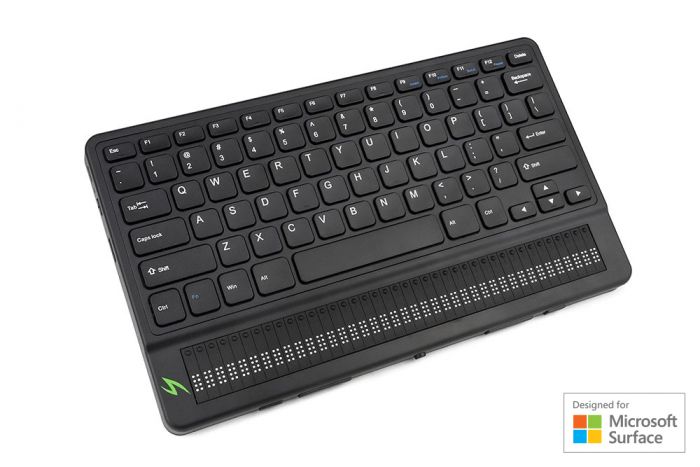
An image of a Braille display device.

Users who know Braille can use a Mantis Q40 Braille display, for example.

© Humanware Europe Limited, Fair Use

2. Assistive Technology for Users with Hearing Disabilities

  • Captions and subtitles display spoken content as text during videos, presentations, or meetings. Auto-captioning tools such as YouTube’s captions benefit not only users with hearing disabilities but also those with temporary disabilities—such as loud environments. Captions also help users for whom the video is not in their native language.

  • Transcription services provide written versions of live or recorded speech, with software including Otter.ai and Google Live Transcribe.

  • Visual alerts, such as flashing lights or screen notifications, replace or supplement audio alerts such as ringtones and alarms.
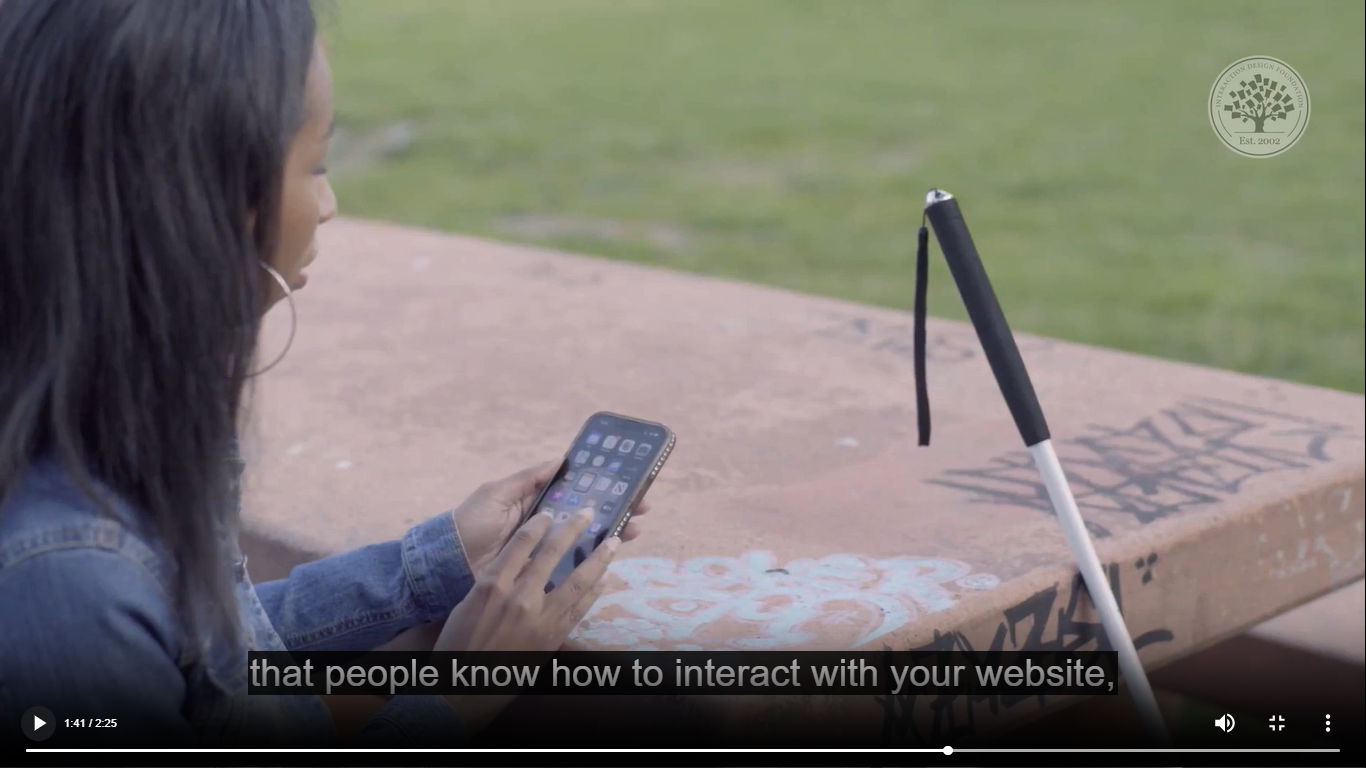
A screenshot of a captioned video showing a person using a phone.

Captions support users with audial disabilities—temporary or otherwise—and users who may need extra time to understand what is said in a video.

© Interaction Design Foundation, CC BY-SA 4.0

3. Assistive Technology for Users with Mobility and Motor Disabilities

  • Devices such as on-screen keyboards and adaptive mice and keyboards help users with motion-related disabilities interact with digital products. For example, they can use one-handed keyboards and trackballs or mouth-controlled devices to navigate and interact with websites.

  • System features such as StickyKeys and FilterKeys help users who cannot press more than one key at once (StickyKeys) and users with tremor-related disabilities such as Parkinson’s who might involuntarily press keys (FilterKeys).
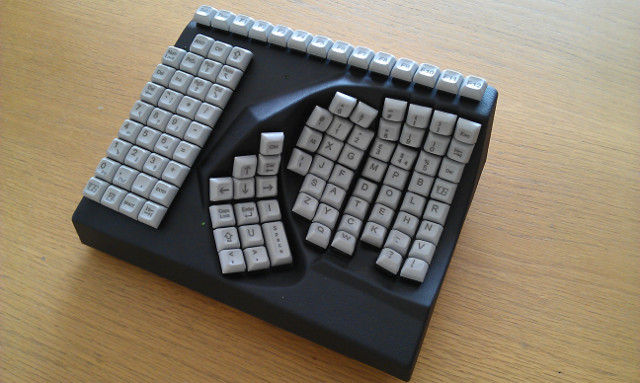
An image of a one-handed keyboard.

A one-handed keyboard is assistive technology that can help users who have the use of one hand—either as a disability or because they might be working on, for example, a production line and inspect goods with their other hand.

© PCD Maltron, LTD. Fair Use

4. Assistive Technology for Users with Cognitive, Learning, and Neurological Disabilities

Assistive tools help users with dyslexia, ADHD, autism spectrum, and memory-related disabilities, particularly for:

  • Reading support such as text-to-speech, font customization such as Dyslexie or OpenDyslexic, and color overlays.

  • Augmentative and alternative communication (AAC) tools such as Proloquo2Go help non-verbal users communicate via images, symbols, or text-to-speech.
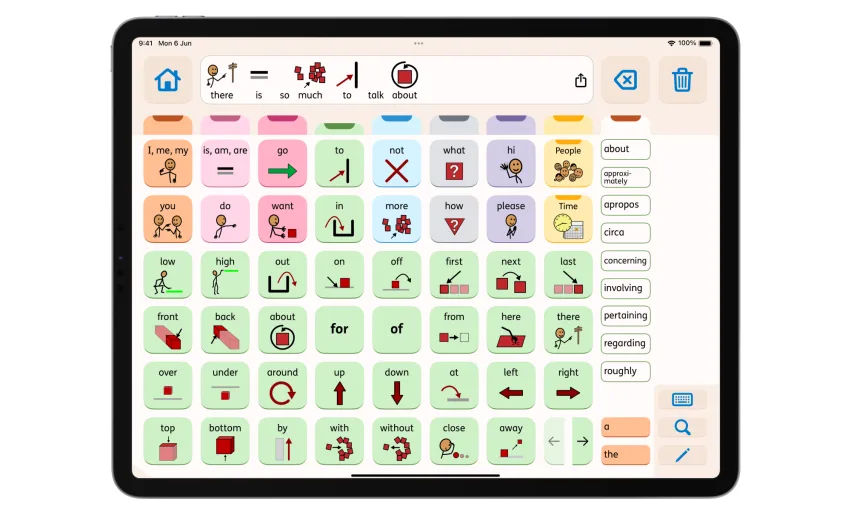
Image of an AssistiveWare Proloquo screen.

This overview of fringe folders in AssistiveWare Proloquo shows the power of communication in image form.

© AssistiveWare, Fair use

5. Assistive Technology for Users with Speech Disabilities

Assistive technologies also serve individuals who cannot speak or have difficulty speaking:

  • Speech-generating devices (SGDs) or voice output communication aids (VOCAs) such as Tobii I-Series allow users to communicate with their eyes.

  • Text-to-speech (TTS) software, such as NextUp Talker help users who cannot speak communicate by converting typed text into spoken, natural-sounding words.

How to Design for Users of Assistive Technology

The most important advice is to factor accessible design in early in the process. The following are general guidelines for designers to implement assistive technology UX from discovery through delivery.

1. Start with User Research

Research is a vital place to begin in any case, both to identify real user needs and challenge assumptions you might not even realize you have. In this video, William Hudson, User Experience Strategist and Founder of Syntagm Ltd, explains important points about user research.

Transcript

  • Recruit diverse participants, including those who use screen readers, voice input, switch controls, or other assistive technology.

  • Conduct contextual inquiries to observe how users interact with devices and environments.

  • Ask about workarounds and pain points—they reveal what your design should fix.

2. Define Accessibility Goals Upfront

  • Align your project goals with WCAG 2.x (with WCAG 3 under development) Level AA (or applicable regional standards).

  • Create journey maps that explicitly include assistive tech users.

  • Write accessibility acceptance criteria for key features.

3. Prototype with Accessibility in Mind

Once you and your design team have ideated to determine what seems like the best design solution, it’s time to prototype it so you can test it with real test users. Start with low-fidelity prototypes. They are cheap and quick to produce and reveal usability and accessibility issues early before it’s too late or costly to fix them. Then, build interactive prototypes that support keyboard navigation and include the following essentials:

  • Clear semantic structure (headings, landmarks, form labels).

  • Keyboard and screen reader support.

  • Clear focus states and visible feedback.

  • Text alternatives for media, icons, and audio.

  • Accessible color contrast and readable typography (Tools like Stark or WCAG Color Contrast Checker can help you meet design standards in real time.)

When you build interactive prototypes that support keyboard navigation, use tools like Figma’s accessibility plugins to label buttons and check alt text.

Watch as Author and Human-Computer Interaction Expert, Professor Alan Dix explains important points about prototyping:

Transcript

4. Test with Real Users and Assistive Tech

Only real users can validate whether your design truly works for their tools and contexts. Users encounter digital products in a wide range of use cases and scenarios. Note: this is typically a task to leave to, for example, a specialist agency, due to the wide variety of specialist knowledge and skills needed to test effectively with users of assistive technology.

  • The specialist agency conducts usability testing with participants using:

    • Screen readers such as NVDA, JAWS, or VoiceOver.

    • Voice control tools such as Dragon or Voice Access.

    • Switch or eye-tracking devices.

  • They combine this with automated and manual accessibility audits such as Axe, WAVE, or Lighthouse.

  • From the pain points and opportunites they document, you then can iterate.

5. Collaborate Closely with Developers

Designers define the intent—but developers build the reality. So, you’ll need to:

  • Provide design specs with accessibility notes such as button labels, ARIA roles, and keyboard behavior.

  • Review implementation with QA or accessibility engineers.

  • Encourage developers to use semantic HTML and test with real assistive technology.

6. Launch with Accessibility Checks

Brands cannot fix what they don’t measure. Accessibility must be part of launch criteria, too, to ensure a digital product serves users with disabilities as well as users of other ability levels. Note that users with disabilities may or may not be using assistive technology to access and interact with the product.

  • Run final accessibility audits.

  • Create a VPAT (Voluntary Product Accessibility Template) if needed.

  • Offer support documentation and user guides in accessible formats.

7. Maintain and Improve Accessibility Over Time

New features can break accessibility unless it’s part of your design culture. Therefore:

  • Include accessibility in every sprint and backlog refinement.

  • Track accessibility bugs like you would any other issue.

  • Regularly retest with assistive tech users, especially after UI changes.

  • Educate your team through training, playbooks, and design reviews.

Overall, remember that an accessibility-aware design process isn’t about extra work—it’s about better work. When you design to accommodate assistive technology users and provide them with the same seamless experience you intend for other users, you improve experiences for everyone. You also prove your brand cares about all users.
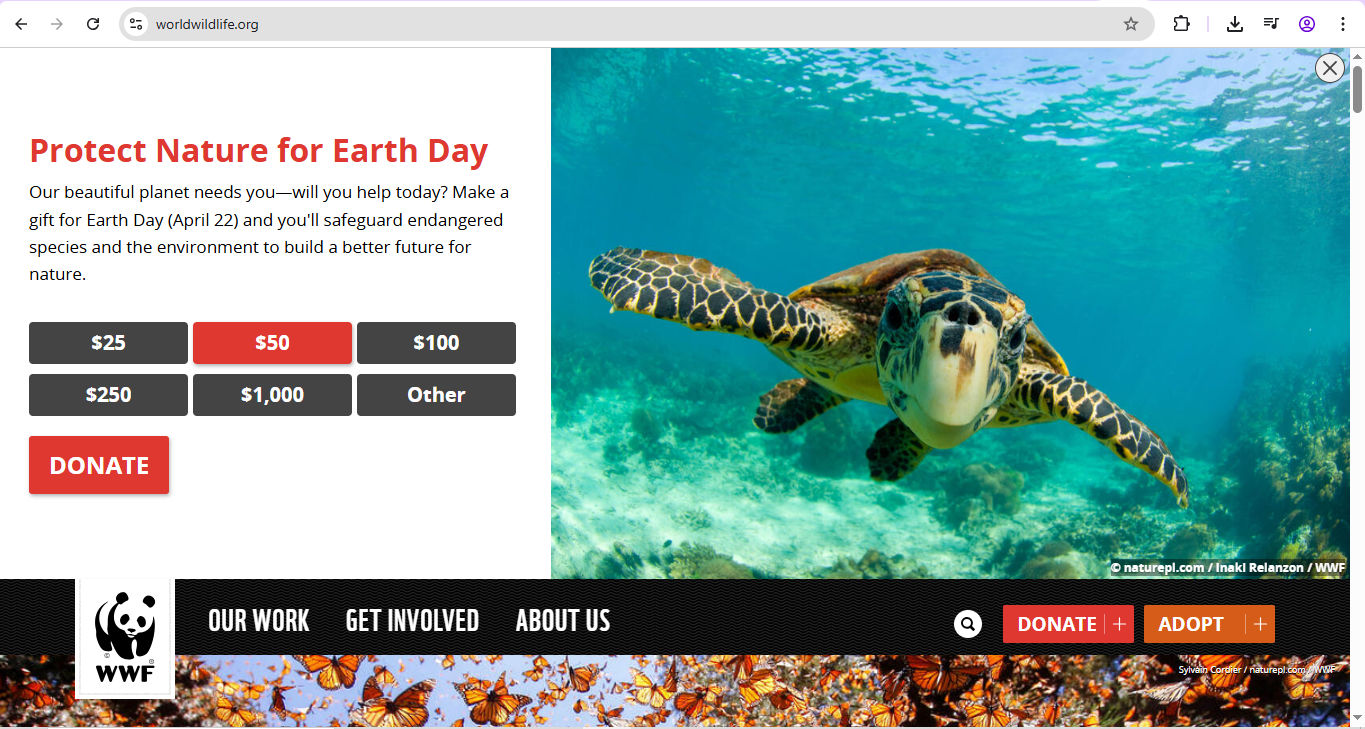
Screenshot of a WWF page showing a turtle and donation options to protect nature for Earth Day.

The Word Wildlife Fund, which works well with such ATs as screen readers and alternative input devices, is a prime example of an AT-friendly site for users.

© World Wildlife Fund, Fair Use

Design for Users with Disabilities: Vital Considerations

Accessible design has come a long way, and smartphones offer many AT-friendly conveniences to bring digital products and services closer to users with disabilities. However, it’s vital to consider several key points:

1. Factor a spirit of accessible design into your brand’s design process and maintain it long after a product launch. Designers and the brands they work for can overlook the needs of users of assistive technology if they approach accessibility as an “edge case” or an afterthought. Unfortunately, this happens all too often. Everyone wins with designs that are accessible and AT-friendly.

2. All users will experience some form of disability during their lives. Temporary disabilities—such as injuries or inconvenient situations like using a phone in bright sunlight or holding a rail on public transit—demand mindful designs, too.

3. Colorblindness is a common disability, especially among men. For example, designers can check their websites’ contrast with WebAim to ensure that users with color blindness can enjoy interacting with the brand. Effective contrast also benefits users who don’t have vision disabilities when they encounter the screen in bright sunlight.

4. A common misconception is that if a design works with a screen reader, it’s accessible. However, remember that users with disabilities have needs that extend to hearing, motion, speech, and cognitive dimensions as well. Plus, users who have vision disabilities can also have other disabilities. Therefore, designers should cater to accessibility needs of all types from early in the design process and not as an afterthought.

5. If you’re working in web design, accessibility also goes hand in hand with search engine optimization (SEO). When you design an accessible website, you also empower users who rely on assistive technology, as the technology will relay information to users appropriately.

Watch as William Hudson explains important points about web design for usability.

Transcript

6. Be mindful of seizure-related disabilities such as photosensitive epilepsy—particularly important if you intend to include flashing light in a notification, for example. So, limit color contrast flickers or patterns that could trigger seizures.

7. A strong grasp of design principles goes a long way in accessible design, too. Clean minimalist designs and clear information architecture, as well as consistent interactive elements and navigation menus are great assets to implement. You can help users of all abilities with them.

8. Users of assistive technology may be adapting to that technology and its intricacies. For example, users who have recently lost their sight may be getting used to screen readers. You can help them by keeping your alt text appropriately simple. Think of it as a double opportunity to access users of assistive technology and give them the seamless experiences they deserve. When you practice good UX for assistive technology, you assist them, other users, and your brand in making truly empathic design a reality.

Questions About Assistive Technology?
We've Got Answers!

What are examples of assistive technologies in digital products?

Assistive technologies (ATs) in digital products make digital spaces more accessible and easier to use for everyone. Examples of ATs include screen readers like JAWS and VoiceOver, which convert text into speech or braille for users with visual disabilities. Screen magnifiers help users enlarge content, while speech recognition tools like Dragon enable people to control devices with their voice. Closed captions and subtitles make videos accessible to deaf or hard-of-hearing audiences.

Keyboard navigation and alternative input devices, such as eye-tracking systems, also support users who can't operate a mouse. Color contrast tools and customizable text settings improve accessibility for people with visual or cognitive disabilities.

Learn how to research and build digital solutions that promote accessibility-centered design in our course, Accessibility: How to Design for All.

How does assistive technology influence UX/UI design?

Assistive technology (AT) greatly influences UX (user experience) and UI (user interface) design by pushing designers to create more inclusive, flexible, and user-centered experiences. Tools like screen readers, voice recognition software, and alternative input devices reveal where interfaces need clearer structure, better labeling, and intuitive navigation. Designers must ensure that all users—including those with disabilities—can interact easily with digital products. This involves activities such as following accessibility standards like WCAG, designing with semantic HTML, providing keyboard-friendly navigation, and supporting screen reader compatibility. By addressing these needs early, designers not only meet legal requirements but build products that feel better for everyone too. Designing for assistive technologies transforms user experience from “usable by some” to “usable by all” and proves a brand is truly mindful that they need to serve every user as best as possible.

How do screen readers work with digital interfaces?

Screen readers convert digital interfaces' on-screen text and elements into speech or braille output, allowing visually impaired users to interact with content. These tools scan the code of a webpage or app and interpret the information based on the structure provided by HTML, ARIA roles, and metadata. When users navigate with keyboards or gestures, the screen reader announces headings, links, buttons, and form fields in the order they appear. A screen reader depends heavily on semantic HTML, proper labeling, and logical navigation flows to make sense of the interface. Without these mindful design elements, users may experience confusion or miss vital information. Understanding how screen readers process digital content and deliver it to users helps UX/UI designers create accessible, well-organized interfaces that work for everyone.

How should I adapt UI elements for screen readers?

To adapt UI elements for screen readers, create clear, structured, and meaningful content that assistive technologies can interpret easily. Always use semantic HTML elements like <button>, <nav>, and <form>, because screen readers rely on these to convey structure and purpose. Label interactive elements properly using ARIA (Accessible Rich Internet Applications) attributes when needed. Ensure that every image has a descriptive alt text that communicates its function or meaning. Avoid using icons or visuals without accompanying text, as screen readers can't interpret images unless properly labeled. Maintain a logical tab order, so users can navigate the interface smoothly. Bear in mind that users who use screen readers often must absorb a lot of information quickly; so, help them with effective and straightforward content that makes sense and maximizes value to them. They will appreciate that your brand cares about all its users regardless of their ability levels.

What considerations should I follow when designing for users with hearing disabilities?

When designing for users with hearing disabilities, prioritize providing information visually rather than relying on audio alone. Always include captions for videos, transcripts for audio content, and visual alerts for notifications or warnings. Make sure captions are synchronized, accurate, and easy to read. Use clear, simple language and reinforce important information with text or imagery. Avoid relying solely on sound cues to signal actions or errors—pair them with visual indicators like icons or pop-up messages. Also, offer options for video calls, like real-time text chats or sign language interpretation. Following these practices not only supports users with hearing disabilities but also improves comprehension and usability for a broader audience—such as benefitting users in noisy or sound-sensitive environments.

How should I design for users with motor disabilities?

When designing for users with motor disabilities, focus on minimizing the need for precise movements and offering flexible interaction options. Create large, easily clickable buttons and ensure generous amounts of space between interactive elements. Allow users to navigate interfaces entirely via keyboard or adaptive devices like mouth sticks or eye-trackers. Support alternative input methods such as voice commands and customizable shortcuts. Avoid timed interactions that pressure users to act quickly; offer adjustable time limits instead. Design forms with auto-fill, error prevention, and easy-to-reach submission buttons.

Users with motor disabilities will encounter your design with a variety of needs. Some may experience tremor-related disabilities and involuntary movements; others may only be able to move the eyes and mouth to interact with your digital product. So, make it accommodate the needs of these users and others—that empowerment will speak well for your brand in everyone's eyes.

Learn how to research and build digital solutions that promote accessibility-centered design in our course, Accessibility: How to Design for All.

Watch as Frank Spillers explains how accessible design helps with usability and Search Engine Optimization (SEO):

Transcript

What common challenges do designers face when working with assistive technology?

Designers face several common challenges when working with assistive technology. A major hurdle is the lack of firsthand experience using tools like screen readers, magnifiers, or alternative input devices. That lack can lead to assumptions about how users interact with designs—assumptions that can translate to oversights that can exclude many users.

Designers also often struggle with keeping up-to-date on evolving accessibility standards such as WCAG. Ensuring compatibility across multiple assistive technologies and browsers also adds complexity. Misunderstanding how semantic code, ARIA labels, and keyboard navigation impact usability can create barriers for users.

Another challenge for designers is the oversight that many users have more than one disability—such as users with visual and hearing disabilities or users with motor and cognitive disabilities—so designers need a more realistic sense of empathy to cater to these users. A further challenge lies in balancing aesthetics with accessibility—some fear accessible designs will limit creative expression. However, accessibility can enhance innovation, and accessible designs perform better in usability tests since they accommodate and include users in so many ways.

Enjoy our How to Design for Neurodiversity: Inclusive Content and UX Master Class with Katrin Suetterlin, UX Content Strategist, Architect and Consultant, to discover more about the needs of neurodiverse and other users.

What are the most common assistive technologies UX designers should design for?

While UX designers shouldn't ignore “uncommon” assistive technologies, they can prioritize designing for common assistive technologies to ensure digital products are accessible to all users. Screen readers like JAWS and NVDA help visually impaired users by reading text aloud or converting it into braille. Screen magnifiers enlarge content for users with low vision. Voice recognition software, such as Dragon, lets users navigate and interact with interfaces through spoken commands. Alternative input devices, including eye-tracking systems and adaptive keyboards, enable users with mobility impairments to control computers. Closed captioning tools and transcripts support users who are deaf or hard of hearing. By understanding and designing for these technologies, designers create experiences that not only include users with disabilities—including users with temporary disabilities or who are in “inconvenient” environments (such as loud ones and they need captions)—but also meet accessibility standards.

Oishi, M. M. K., Mitchell, I. M., & Van der Loos, H. F. M. (Eds.). (2010). Design and Use of Assistive Technology: Social, Technical, Ethical, and Economic Challenges. Springer.

This interdisciplinary volume delves into the multifaceted challenges associated with the design and implementation of assistive technologies. Edited by Oishi, Mitchell, and Van der Loos, the book brings together perspectives from engineering, computer science, occupational therapy, and neurology to address issues such as user-centered design, ethical considerations, and economic factors influencing assistive technology development. By examining the entire lifecycle—from conception to user adoption—it offers valuable insights for UX designers, policymakers, and technologists aiming to create inclusive solutions that effectively meet the diverse needs of individuals with disabilities. The book serves as a critical resource for understanding the complexities and responsibilities inherent in assistive technology design.

Bryant, D. P., & Bryant, B. R. (2012). Assistive Technology for People with Disabilities (2nd ed.). Pearson.

This widely used textbook by Diane P. Bryant and Brian R. Bryant offers a foundational overview of assistive technology (AT) solutions for people with disabilities. Focused especially on educational settings, it covers assessment, selection, and integration of AT tools to enhance learning, communication, mobility, and independent living. Its structured, accessible presentation and emphasis on practical strategies make it crucial for UX designers, educators, and rehabilitation specialists who need to create or recommend inclusive technologies. It helps bridge the gap between technological innovation and user needs, ensuring that assistive devices are effective, usable, and truly supportive of their intended audiences.

What are some recent or highly cited scientific articles about assistive technology?

Schulz, T., & Fuglerud, K. S. (2020). Creating personas with disabilities. arXiv preprint arXiv:2003.11875.

This paper discusses the challenges and methodologies for creating personas that include users with disabilities in design processes. Schulz and Fuglerud argue that traditional persona creation often overlooks the diverse experiences of disabled individuals, leading to exclusionary design outcomes. The authors propose specific strategies for integrating insights about assistive technology usage and disability-specific experiences into persona development. Their work is critical because it pushes the design field toward greater inclusivity from the early stages of product development. It equips UX and accessibility practitioners with practical methods to better represent all users, ensuring that products and services meet a wider range of real-world needs.

Harris, N. (2017). The design and development of assistive technology. IEEE Potentials, 36(1), 24–28.

In this article, Harris explores the principles behind designing and developing assistive technology (AT), focusing particularly on user-centered and participatory design methods. The paper stresses that the success of AT products heavily depends on involving users—especially people with disabilities—throughout the development process. Harris also discusses the technical and ethical challenges of creating devices that genuinely meet users' needs. This work is important because it bridges technical engineering approaches with human-centered design principles, offering practical insights for developers. It serves as a foundational reference for understanding how inclusive, responsive AT solutions can be achieved, leading to more effective and widely adopted technologies.

Earn a Gift Earn a Gift, Answer a Short Quiz!

1
2
3
4
1
2
3
4
Question 1
Question 2
Question 3
Get Your Gift
Interaction Design Foundation logo

Question 1

What is the primary goal of assistive technology?

1 point towards your gift

  • To replace human caregivers in all situations.
  • To enhance the functional capabilities of people with disabilities.
  • To create high-end gadgets for luxury purposes.
Interaction Design Foundation logo

Question 2

Which of the following can be considered assistive technology?

1 point towards your gift

  • A simple pencil grip that helps with handwriting.
  • A regular smartphone used for gaming.
  • A decorative wall painting.
Interaction Design Foundation logo

Question 3

Who can benefit from the use of assistive technology?

1 point towards your gift

  • Only people with permanent physical disabilities.
  • Individuals with temporary injuries, aging-related challenges, or permanent disabilities.
  • Only people who require full-time medical care.

Learn More About Assistive Technology

Make learning as easy as watching Netflix: Learn more about Assistive Technology by taking the online IxDF Course Accessibility: How to Design for All.

Why? Because design skills make you valuable. In any job. Any industry.

In This Course, You'll

  • Get excited about creating accessible products people love! Prioritizing accessibility naturally improves everyone's experience. For example, video captions don't just help people with hearing impairments. They also help anyone who watches videos in a noisy space, with sound off, or in a non-native language. With over 1 billion people living with disabilities, your design decisions will open (or close) the door to millions. If you want to tap into a massive, underserved market and build your reputation as an inclusive, impactful designer, this course is for you. 

  • Make yourself invaluable by mastering how accessibility can accelerate product success and, in addition, protect your brand from legal risks. Accessibility isn't just good for people with disabilities—it's great for business. Happier users lead to greater impact, loyalty, and the kind of salary that reflects your value. You'll learn how to demonstrate the return on investment (ROI) of accessibility and easily build a compelling business case. You'll confidently design for a wide range of disabilities and easily create smooth experiences everyone loves.

  • Gain confidence and credibility as you implement Web Content Accessibility Guidelines (WCAG) and the ready-to-use Accessibility Screener template. With expert guidance and step-by-step templates, it's simpler than you think! You'll immediately be able to apply these insights across all roles and industries. AI-powered features have the potential to make products more accessible at scale, but you stay in demand when you know how to apply them well. Timeless human-centered accessibility skills help you make clear choices that ensure new features, automated systems, and design decisions actually work for people with different abilities. You don't need a specific background. You'll get a deep understanding of how design impacts usability for everyone through interviews with an accessibility specialist with visual impairment. Even without any prior experience, you'll effortlessly optimize code with practical techniques like Accessible Rich Internet Applications (ARIA) markup and alt text for images. This course gives you the skills to master compliance standards and create products with improved usability for everyone.

It's Easy to Fast-Track Your Career with the World's Best Experts

Master complex skills effortlessly with proven best practices and toolkits directly from the world's top design experts. Meet your expert for this course:

  • Frank Spillers: Service Designer and Founder and CEO of Experience Dynamics.

Get an Industry-Recognized IxDF Course Certificate

Increase your credibility, salary potential and job opportunities by showing credible evidence of your skills.

IxDF Course Certificates set the industry gold standard. Add them to your LinkedIn profile, resumé, and job applications.

Course Certificate Example

Be in distinguished company, alongside industry leaders who train their teams with the IxDF and trust IxDF Course Certificates.

Our clients: IBM, HP, Adobe, GE, Accenture, Allianz, Phillips, Deezer, Capgemin, Mcafee, SAP, Telenor, Cigna, British Parliament, State of New York

All Free IxDF Articles on Assistive Technology

Read full article
Understand the Social Needs for Accessibility in UX Design - Article hero image
Interaction Design Foundation logo

Understand the Social Needs for Accessibility in UX Design

As UX designers, we have a lot on our plates. The term “UX Unicorn” exists for a reason. We are responsible for our clients’ goals as well as our users’ needs. You might ask then, why should you think about Accessibility in your UX Design process?Imagine going into a design workshop and telling your

Social shares
928
Published
Read Article

Understand the Social Needs for Accessibility in UX Design

Understand the Social Needs for Accessibility in UX Design

As UX designers, we have a lot on our plates. The term “UX Unicorn” exists for a reason. We are responsible for our clients’ goals as well as our users’ needs. You might ask then, why should you think about Accessibility in your UX Design process?

Imagine going into a design workshop and telling your client that you need more hours to make his or her company website accessible. You’ll need a good use case to convince your client and maybe even yourself that accessibility should feature in the UX Design process. Here, we will look at the social need of why you should design with accessibility in mind.

People with Disabilities Form One of the Largest User Groups in the World

In 2023, the World Health Organization estimated there were 1.3 billion people with disabilities in the world or 16% of the global population. That is almost the entire population of China or India and about four times the population of the U.S. In fact, persons with disabilities are the largest minority in the world.

Disabilities can develop from birth, aging or accidental or health-related incidents. On average, people who are 70 years old or older will spend eight years as individuals with disabilities. As the Baby Boomers who were born in the years following the Second World War – approximately between the years 1946 and 1964 – have been aging, we have been seeing an increasing need for digitally inclusive and accessible solutions.

How to Use Personas to Start Thinking About Accessibility

Personas are fundamental for UX design projects. If we want to build accessibility design thinking into the UX process, then one of the best methods is to have a persona with a disability.

According to the Centers for Disease Control and Prevention (CDC), which is the leading national public health institute of the United States, a person with disability may have difficulty with the following:

  • Vision

  • Movement

  • Thinking

  • Remembering

  • Learning

  • Communicating

  • Hearing

  • Mental health

  • Social relationships

Here are examples of personas with disabilities:

Example 1: Vision Impairment

A 60-year-old retired woman with vision loss caused by diabetes—the woman’s disability is illness-/age-related.

Example 2: Physical Impairment

A 22-year-old male college student who has muscle weakness with his hands due to Multiple Sclerosis

Example 3: Cognitive Impairment

A 45-year-old female who immigrated to the U.S. for less than two years—English is her second language, and she needs extra time to read and write English phrases. As you can see, adding a disability to our personas makes it easier for us to think about accessibility for UX projects. In the following sections, you will learn about different models of disability and the social impact it has on us as designers.

Two Models to Look at How Disability Is Perceived in the Society

The definition of disability varies based on models of disability. The nonprofit organization Michigan Disability Rights Coalition listed nine different models of disability. For our purpose, we will look at the two dominant models: the Medical Model of Disability and the Social Model of Disability.

The Medical Model of Disability: The Person as the Cause For Disability

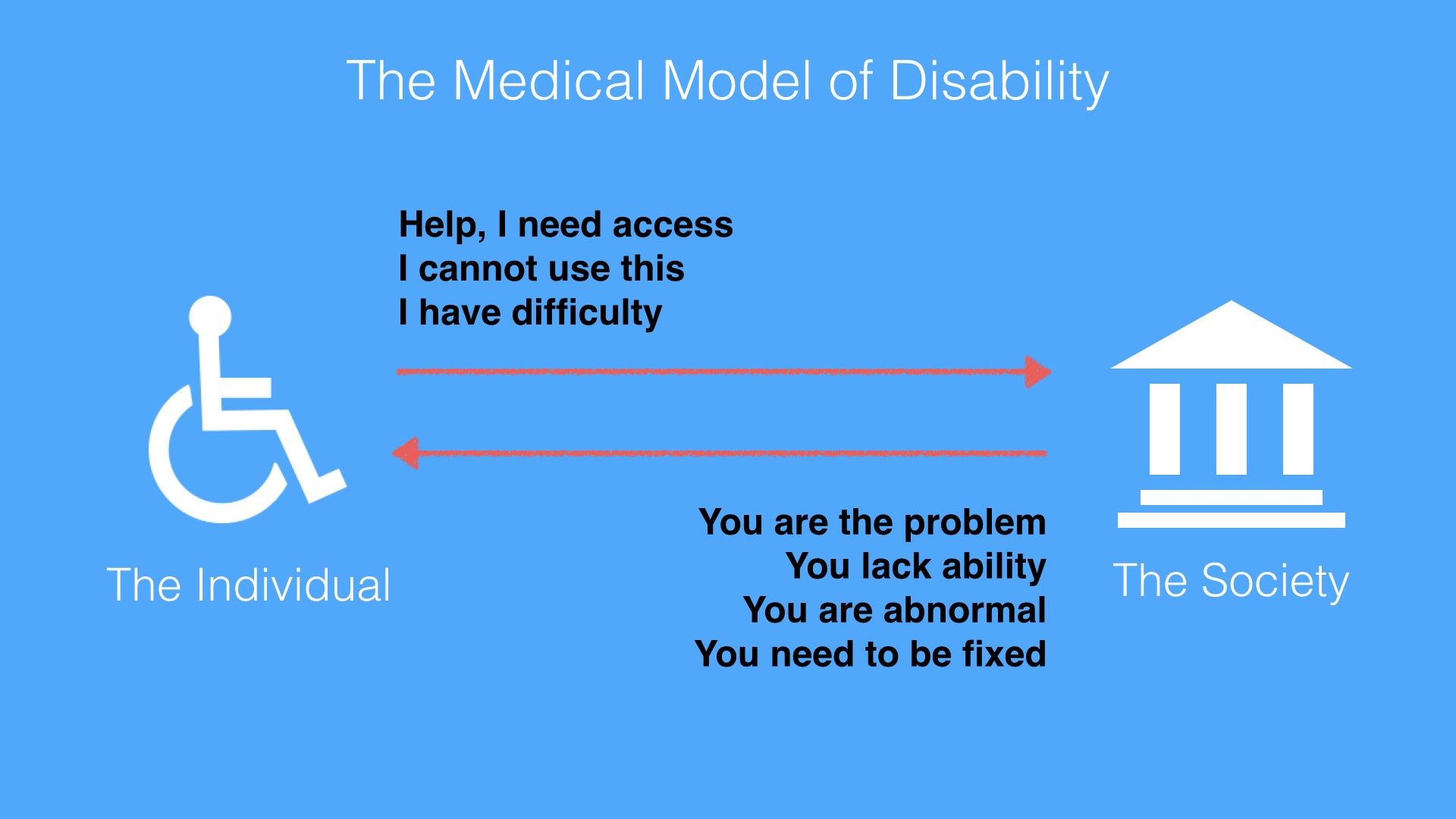
The Medical Model of Disability places the burden and responsibility on the person with a disability. The person is the problem or owns the problem. The Medical Model of Disability is harsh. It uses keywords such as ‘abnormality’, ‘lack of ability’ and ‘disadvantage’ to describe a person. The Medical Model of Disability applies the medical world’s view that one needs cures or fixes to be a normal functioning person.

© Ruby Zheng and Interaction Design Foundation, CC BY-NC-ND

The World Health Organization (WHO) published the International Classification of Impairments, Disabilities and Handicaps manual in 1980. The goal of the manual was to classify the consequences of diseases and their implications for the lives of individuals. It used the Medical Model of Disability as its basis to define disability.

According to the manual, here is the progression and definitions of diseases for persons with disabilities:

“Disease > Impairment > Disability > Handicap
Impairment: In the context of health experience, an impairment is any loss or abnormality of psychological, physiological, or anatomical structure or function.
Disability: In the context of health experience, a disability is any restriction or lack (resulting from an impairment) of ability to perform an activity in the manner or within the range considered normal for a human being.
Handicap: In the context of health experience, a handicap is a disadvantage for a given individual, resulting from an impairment or a disability, that limits or prevents the fulfillment of a role that is normal (depending on age, sex, and social and cultural factors) for that individual.” – World Health Organization (WHO), International Classification of Impairments, Disabilities, and Handicaps, 1980

Needless to say, these definitions are harsh and use keywords such as ‘abnormality’, ‘lack of ability’ and ‘disadvantage’ to describe a person. The Medical Model of Disability applies the medical world’s view that one needs cures or fixes to be a normal functioning person. And it places the onus on persons with disability.

The Social Model of Disability: Society as the Cause For Disability

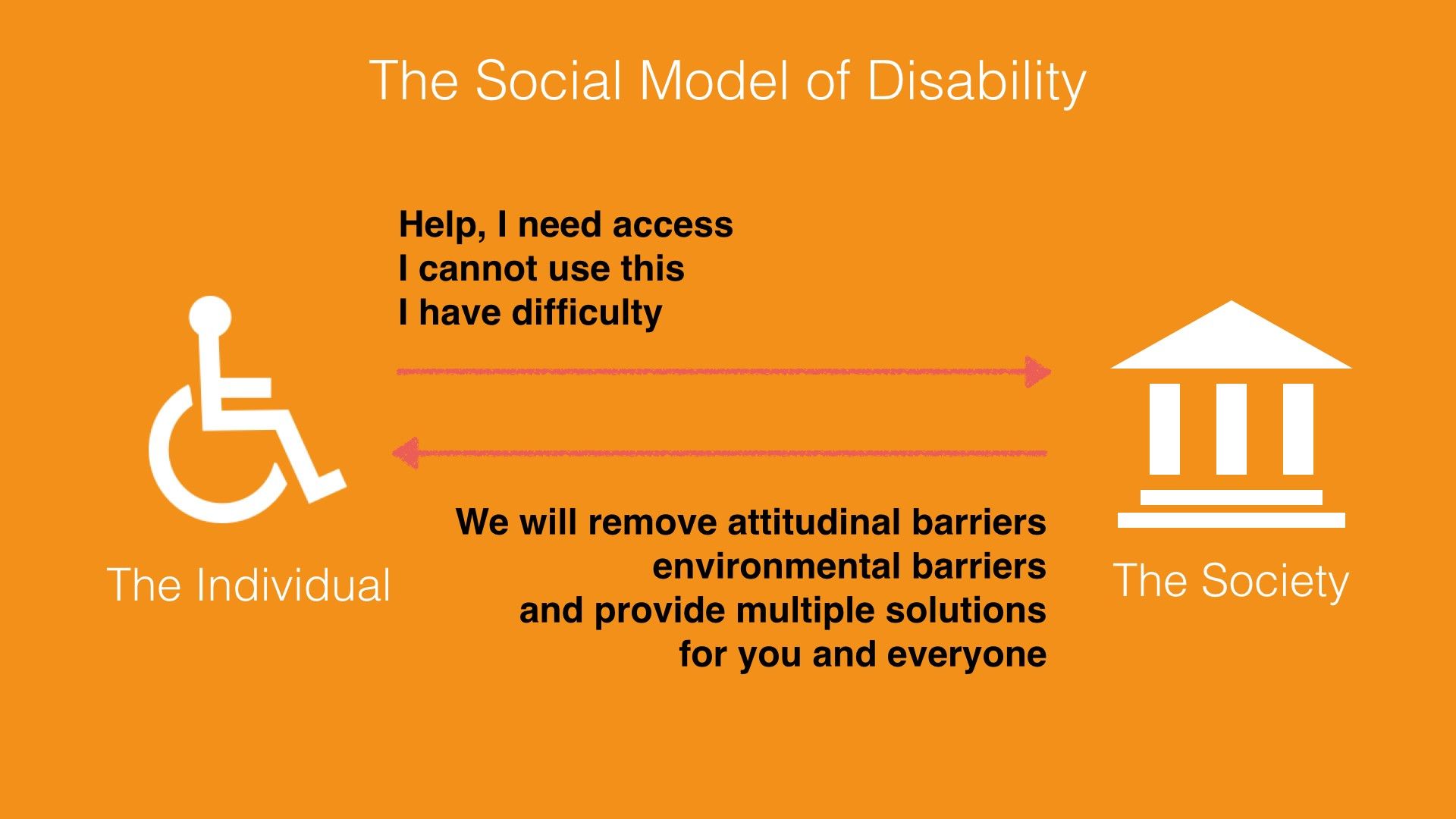
The Social Model of Disability does not place the burden and responsibility on the person with a disability. Instead, this model describes disability as a consequence of environmental, social and attitudinal barriers. Instead of fixing or curing a person with disabilities, it is up to society to remove barriers so as to improve his or her life. Hence, this model provides a deeper understanding and acceptance of people with disabilities.

© Ruby Zheng and Interaction Design Foundation, CC BY-NC-ND

The reaction from the disability community towards the WHO’s manual and the Medical Model of Disability was immediate. Three years after the WHO published the manual, Mike Oliver coined a new model called the Social Model of Disability. Oliver was a British author and disability rights activist.

In a paper titled "The Individual and Social Models of Disability”, Oliver contended against the Medical Model of Disability:

"The simple answer to this is that disability is a social state and not a medical condition. Hence medical intervention in, and more importantly, control over disability is inappropriate. Doctors are trained to diagnose, treat and cure illnesses, not to alleviate social conditions or circumstances."
– Mike Oliver, “The Individual and Social Models of Disability”, 1990

Oliver believed the Social Model of Disability provides a deeper understanding and acceptance of people with disabilities. It describes disability as a consequence of environmental, social and attitudinal barriers.

With this model, the onus is no longer on persons with disabilities but on society. Instead of trying to fix or cure a person with a disability, it is up to society to drive social integration and acceptance. As UX designers, we should take environmental, social and attitudinal barriers into consideration. For example, a common environmental barrier for users is being able to see the screen under bright sunlight. This barrier applies to both visually impaired users and ‘normal’ users. If we take this barrier into consideration, then we will design a solution with large fonts and strong color contrast.

The UN Convention on the Rights of Persons with Disabilities

The idea of barriers from the Social Mode of Disability is adopted into global policies for digital accessibility. The United Nations is one of the international catalyzers. It adopted the Convention on the Rights of Persons with Disabilities, which is often referred to as the CRPD or ‘the convention’, in 2006 and signed it into effect in 2007. It is the first major human rights treaty of the 21st century. It bases its philosophy and definition on the Social Model of Disability.

The official UN definition of disability is the following:

"The term persons with disabilities is used to apply to all persons with disabilities including those who have long-term physical, mental, intellectual or sensory impairments which, in interaction with various attitudinal and environmental barriers, hinders their full and effective participation in society on an equal basis with others." – UN, Secretariat for the Convention on the Rights of Persons FAQ, 2007

UN Example of an environmental barrier:

"A person in a wheelchair might have difficulties being gainfully employed not because of her condition but because there are environmental barriers such as inaccessible buses or staircases in the workplace which obstruct his or her access."
– UN, Secretariat for the Convention on the Rights of Persons FAQ, 2007

UN Example of an attitudinal barrier:

"A child with an intellectual disability might have difficulties going to school due to the attitudes of teachers, school boards and possibly parents who are unable to adapt to students with different learning capacities."
– UN, Secretariat for the Convention on the Rights of Persons FAQ, 2007

How the Convention for Persons with Disabilities Is Adopted Worldwide

By March 2024, 191 states had ratified the convention and 164 had signed it. (A signature indicates an intention to ratify, but it does not immediately create legal obligations.) Thus, the convention came to protect more than 80% of the world's population. The U.S. has not ratified the convention as of May 2024 but did add its signature in July 2009. Some U.S. lawmakers do not want to ratify the convention. They contend that the U.S. has its own regulations for accessibility. The two main regulations in the U.S. are the Rehabilitation Act of 1973 and the Americans with Disabilities Act (ADA) passed in 1990.

What Is Information and Communications Technology (ICT) Accessibility?

Article 9 of the convention is the section on accessibility. It includes accessibility needs for physical environment and transportation, and digital information and services. The convention uses information and communications technology (ICT) as an umbrella term for any digital device or application. There are two parts to this section.

Article 9 – Accessibility, Part I

The first part of Article 9 describes the types of public infrastructures that are to be considered under the convention.

"To enable persons with disabilities to live independently and participate fully in all aspects of life, States Parties shall take appropriate measures to ensure to persons with disabilities access, on an equal basis with others, to the physical environment, to transportation, to information and communications, including information and communications technologies and systems, and to other facilities and services open or provided to the public, both in urban and in rural areas.” – UN, Convention on the Rights of Persons with Disabilities, Article 9, 2006

Article 9 – Accessibility, Part 2

The second part of Article 9 lists the types of appropriate measures which should be taken under the convention. Promoting access to new ICTs, such as the Internet, is one of the required measures:

“Promote access for persons with disabilities to new information and communications technologies and systems, including the Internet” – UN, Convention on the Rights of Persons with Disabilities, Article 9, 2006

How ICT Accessibility Affects UX Design for the Web

When designing for digital devices or applications, all of us who are UX designers need to think about ICT Accessibility and how to implement solutions so as to enable access for all. The World Wide Web is an important component of information and communications technology. In this section, we’ll take a look at how ICT Accessibility affects UX Design for the web.

The World Wide Web Consortium (W3C) is an international community that develops standards for the web. It follows the principles of W3C Director and inventor of the World Wide Web, Tim Berners-Lee, and holds accessibility as a fundamental need for web design.

“The power of the Web is in its universality. Access by everyone regardless of disability is an essential aspect.
– Tim Berners-Lee, W3C Director and inventor of the World Wide Web

The W3C follows the UN convention principles. It recognizes access to Information and Communications Technology (ICT) as a basic human right. As an effort to improve accessibility, the W3C launched the Web Accessibility Initiatives (WAI) in 1997. The WAI provides guidelines, standards and techniques for accessibility.

The WAI has created three core guidelines for the web:

  1. Web Content Accessibility Guidelines (WCAG)

  2. Addresses the information on a website, including text, images, forms, sounds, and such.

  3. Authoring Tool Accessibility Guidelines (ATAG)

  4. Addresses software that creates Web sites.

  5. User Agent Accessibility Guidelines (UAAG)

  6. Addresses Web browsers and media players, and relates to assistive technologies.

The Web Content Accessibility Guidelines (WCAG) 1.0 was first published in 1999 and was updated to version 2.0 in 2008. WCAG version 2.2 became a recommendation in October 2023. It is an important source of reference for international policies, standards and legislation. In addition, this is good guidance for UX designers to learn about how to design accessible websites.

Web Content Accessibility Guidelines (WCAG) 2 Provide Four Layers of Guidance for UX Designers

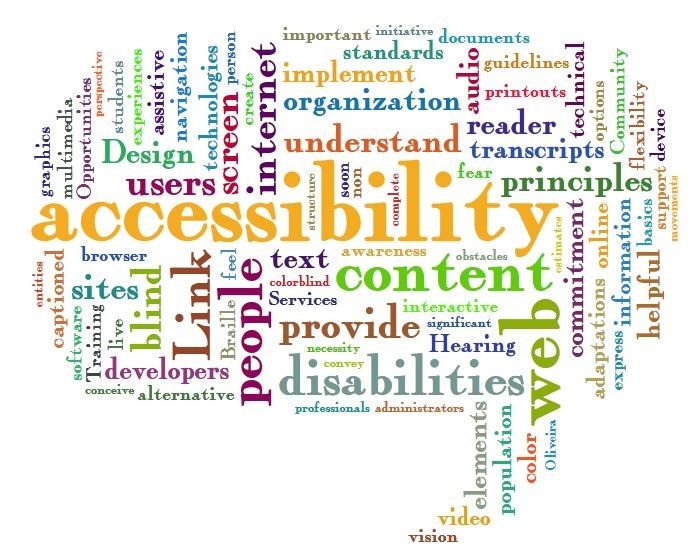
The Web Accessibility Word Cloud shows a collection of words often used in the accessibility design space. The size of the words shows how often they are used. Some of the frequently used words are ‘accessibility’, ‘content’, ‘web’, ‘internet’, ‘design’ and ‘disabilities’.

© Jil Wright, CC BY 2.0

WCAG 2 has an amazing set of design principles, guidelines and techniques. It is created for UX and web designers, content creators, and developers. You can start applying these principles and techniques right away. We are presenting them to you here and showing you how designers at Apple, TED talks and Twitter have already implemented the principles to the benefit of persons with disabilities as well as users without disabilities.

  1. Principles – The top layer of guidance is four principles that provide the foundation for Web accessibility: Perceivable, Operable, Understandable, and Robust (POUR).

  2. Guidelines – Under the principles are guidelines. The 12 guidelines provide the basic goals that designers should work toward in order to make their designs more accessible to users with different disabilities. The guidelines are not testable, but they provide the framework and overall objectives to help designers understand the success criteria and better implement the techniques.

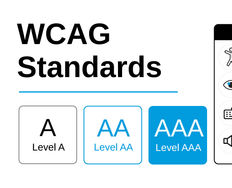
  3. Success Criteria – Each guideline has a set of testable success criteria to verify accessibility for a web application or website. Each criterion has three levels: A, AA, and AAA. Level A is the minimal level. In the U.S., companies generally design and develop toward Level AA compliance. A level AA compliance will cover most legal regulations.

  4. Sufficient and Advisory Techniques – For each of the guidelines and success criteria, there are a wide variety of techniques that fall into two categories:

    1. Those that are sufficient for meeting the success criteria.

    2. Those that are advisory.

4 Principles and 12 Guidelines Which Will Help You Design for Accessibility

The following four principles – Perceivable, Operable, Understandable and Robust (POUR) – are easy to implement, and they will help you remember to design for accessibility whenever possible. We’ll show you how other designers have implemented the principles in a successful way.

Principle 1: Perceivable – and How UX Designers Can Incorporate the Principle

“Principle 1: Perceivable Information and user interface components must be presentable to users in ways they can perceive.”

  • Guideline 1.1 Text Alternatives: Provide text alternatives for any non-text content so that it can be changed into other forms people need, such as large print, braille, speech, symbols or simpler language.

  • Guideline 1.2 Time-based Media: Provide alternatives for time-based media.

  • Guideline 1.3 Adaptable: Create content that can be presented in different ways (for example, simpler layout) without losing information or structure.

  • Guideline 1.4 Distinguishable: Make it easier for users to see and hear content, including separating foreground from background.

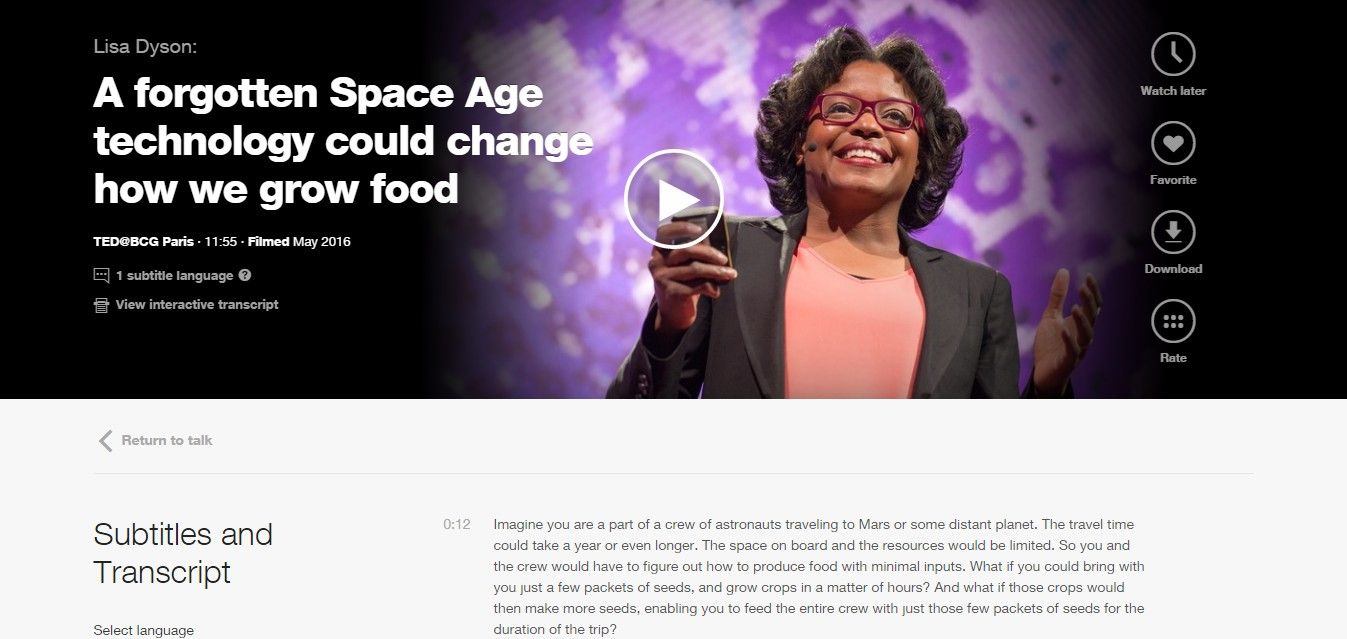
Design Example: TED Talks Video Transcripts

The TED talks, which are live lectures recorded in front of a large audience, are a great example of how videos include a transcript. This makes the TED talks accessible to a wide audience. People with hearing impairments can read the transcripts, and people with visual impairments can hear the audio. However, this feature is also great for people sitting in a bus who do not want to disturb other passengers.

All TED talks provide subtitles and transcripts for all of their videos.

© TED Conferences, LLC, Fair Use

Principle 2: Operable – and How UX Designers Can Incorporate the Principle

“Principle 2: Operable – User interface components and navigation must be operable.”

  • Guideline 2.1 Keyboard Accessible: Make all functionality available from a keyboard.

  • Guideline 2.2 Enough Time: Provide users with enough time to read and use content.

  • Guideline 2.3 Seizures: Do not design content in a way that is known to cause seizures.

  • Guideline 2.4 Navigable: Provide ways to help users navigate, find content, and determine where they are.

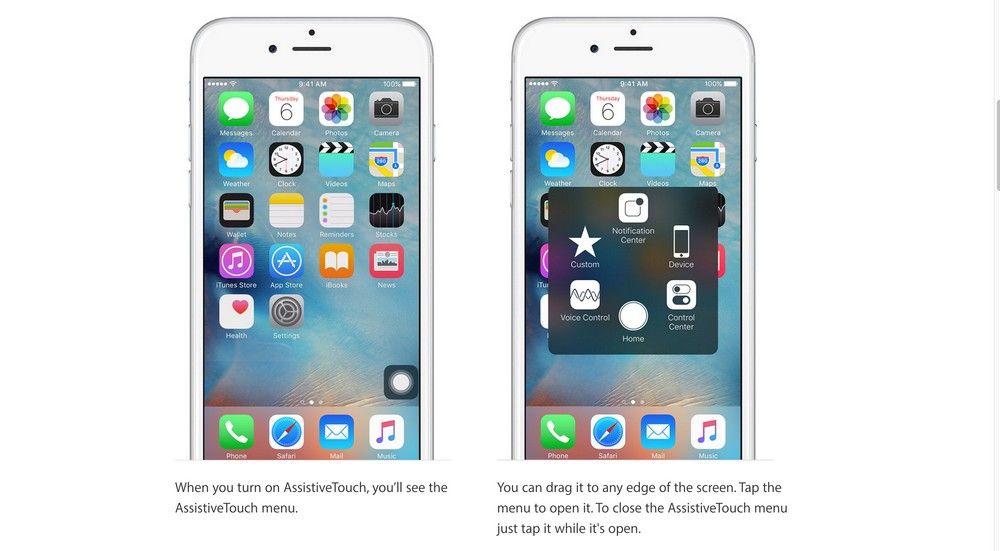
Design Example: Apple AssistiveTouch

AssistiveTouch is an accessibility feature for Apple's iPhone, iPad and iPod. It provides alternative navigation methods and touch gestures for people with physical impairments. Users using AssistiveTouch can quickly access settings and the home screen and create their own touch gestures.

Apple’s AssistiveTouch provides alternative navigation methods and gesture controls.

© Apple, Inc., Fair Use

Principle 3: Understandable – and How UX Designers Can Incorporate the Principle

“Principle 3: Understandable – Information and the operation of user interface must be understandable.”

  • Guideline 3.1 – Make text content readable and understandable.

  • Guideline 3.2 – Make web pages appear and operate in predictable ways.

  • Guideline 3.3 – Help users avoid and correct mistakes.

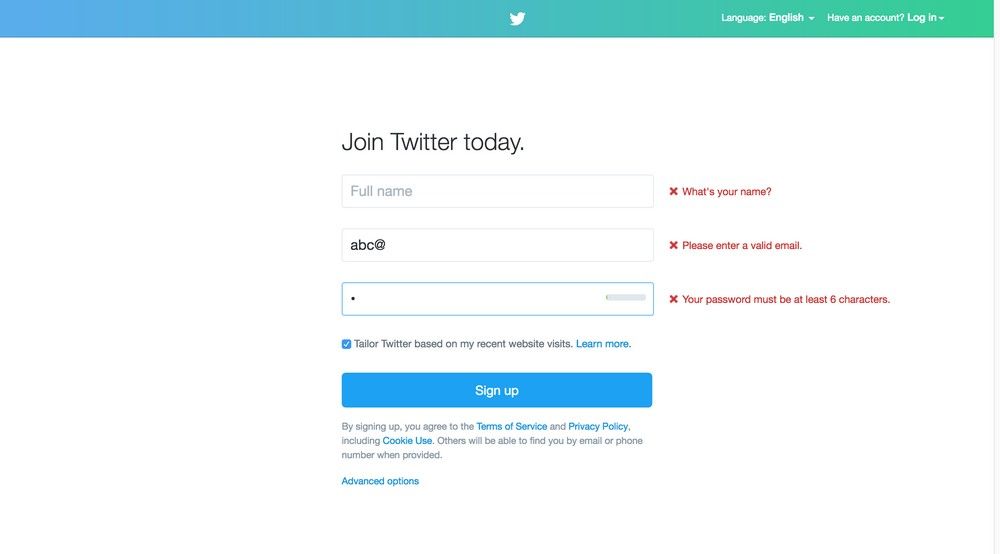
Design Example: Twitter Error Message

Twitter error messages for its sign-up form are readable and understandable. The error messages are written in Standard English with no jargon or acronyms. Also, the error messages are marked in red and placed next to the input fields. It makes it easy for users to understand and correct their mistakes.

Twitter error messages use Standard English. Also, the error messages are marked in red and placed next to the input fields. It makes it easy for users to understand and correct their mistakes.

© Twitter, Inc., Fair Use

Principle 4: Robust – and How UX Designers Can Incorporate the Principle

Principle 4: Robust Content must be robust enough that it can be interpreted reliably by a wide variety of user agents, including assistive technologies.”

  • Guideline 4.1 – Maximize compatibility with current and future user agents, including assistive technologies.

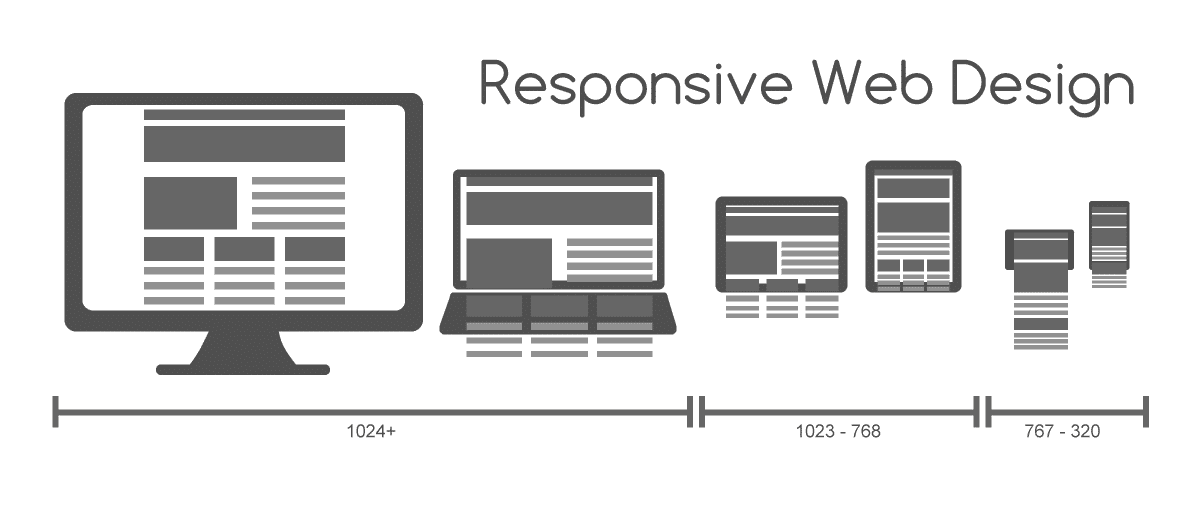
Design Example: Responsive Web Design

Responsive Web Design is a web design approach coined by web designer and developer Ethan Marcotte in 2011. This approach enables designers to create websites that are robust, accessible and optimized for different browsers and screen sizes.

Responsive Web Design is an approach to creating websites for different browsers and screen sizes.

© Muhammad Rafizeldi, CC BY-SA 3.0

The Take Away

As designers, we need to plan and design for accessibility in UX projects. We have the responsibility, not only to our profession but also to our users and society, to design accessible digital solutions. One simple method of including accessibility in our UX projects is to assign a disability to one of the personas. Another method is to follow the Web Content Accessibility Guidelines (WCAG), as developed by the W3C (directed by the inventor of the World Wide Web, Tim Berners-Lee) and inspired by the UN convention principles.

As a community, we can remove discrimination against people with disabilities and protect their rights to be part of society. By doing so, we will create access to all products and services that will delight everyone.

Hero Image: © David Amsler, CC BY 2.0

References & Where to Learn More

Course: Accessibility - How to Design for All

World Health Organization(WHO), International Classification of Impairments, Disabilities, and Handicaps, 1980.

United Nations, Convention on the Rights of Persons with Disabilities, 2006.

W3C Standards for Web Design Accessibility.

Feel Stuck?
Want Better Job Options?

AI is replacing jobs everywhere, yet design jobs are booming with a projected 45% job growth. With design skills, you can create products and services people love. More love means more impact and greater salary potential.

At IxDF, we help you from your first course to your next job, all in one place.

See How Design Skills Turn Into Job Options
Privacy Settings
By using this site, you accept our Cookie Policy and Terms of Use.
Customize
Accept all

Be the One Who Inspires

People remember who shares great ideas.

Share on:

Academic Credibility — On Autopilot

Don't waste time googling citation formats. Just copy, paste and look legit in seconds.