Visual Hierarchy

Your constantly-updated definition of Visual Hierarchy and collection of videos and articles.
Be a conversation starter: Share this page and inspire others!

690 Shares

What is Visual Hierarchy?

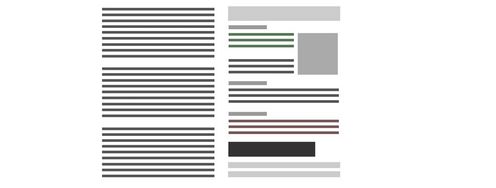
Visual hierarchy is the principle of arranging elements so that people instantly recognize their order of importance on a screen or page. When you use visual hierarchy well, you guide attention, reduce confusion, and make your message easy to follow, and build trust.

Explore the power you can wield on the screen and page when you use effective visual hierarchy, in this video.

Transcript

How Visual Hierarchy Makes People Listen to You

In UX (user experience) design and UI (user interface) design, the principle of good visual hierarchy determines whether users can scan a page, find what they need, and take action without friction. On a web page, for example, a bold headline will almost certainly capture attention first, a contrasting button may signal the next step, and clean spacing helps users understand how information is grouped.

The same applies to presentations. If your slides look cluttered, or if every element shouts for attention, your audience won’t know where to look. However, if you structure your visuals carefully, you’ll control the flow of attention and keep people engaged from beginning to end.

“Visual hierarchy controls the delivery of the experience. If you have a hard time figuring out where to look on a page, it’s more than likely that its layout is missing a clear visual hierarchy.”

—Kelley Gordon, writing for The Nielsen Norman Group

Beyond design work, this is about leadership. When you guide people’s attention clearly, they listen, trust you, and remember your ideas. That’s how you succeed in meetings, pitches, or interviews.

How to Guide Attention with Visual Hierarchy

On a web page, app screen, presentation slide, or other design you show to an audience, you can shape an effective hierarchy with several visual cues. Here are the most important ones:

Size

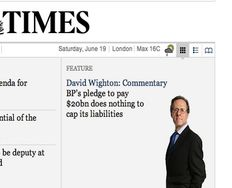
Larger elements command more attention than smaller ones can. For example, viewers will notice a headline in 44-point text pretty much right away, and before they find a footnote in 12-point. Use size to highlight your key points so nobody misses them.

Color

Bright or saturated colors draw the eye more than muted ones will, which is why they can help users and viewers notice outstanding elements that are that way for a strategic reason (such as a call-to-action button). Use color carefully to help users notice important elements and such.

Contrast

Strong light–dark differences or bold versus thin weights make elements stand out. This is why contrast is particularly important for viewers with vision disabilities and so forms a part of accessible design. Use contrast mindfully to help users be able to more easily notice important elements and enjoy an accessible design.

Discover why accessibility helps all users, in this video.

Transcript

Alignment

When you align elements and layout well, you shape the flow and help users and viewers to enjoy seamless experiences in digital products and presentations. When you make most items neatly aligned, a single off-axis element stands out.

Explore how to empower screens and pages of all types with effective visual alignment that users and viewers notice, in this video with Alan Dix: Author of the bestselling book “Human-Computer Interaction” and Director of the Computational Foundry at Swansea University.

Transcript

Repetition

Repeated shapes, colors, or styles suggest that content is related. Viewers make these associations quickly, too, which is why it’s important to use repetition purposefully.

Proximity

Items that are close together appear grouped, and it’s a major reason the law of proximity works as one of the principles rooted in Gestalt psychology, which explains how humans perceive patterns and groupings. Use it to group similar items strategically to help users.

Get a greater grasp of how to use Gestalt principles to get noticed with your content, in this video with Mia Cinelli, Associate Professor of Art Studio and Digital Design, University of Kentucky.

Transcript

White Space

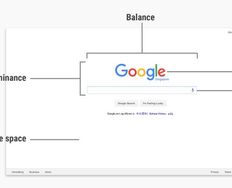
Empty space is powerful; the right amount of “nothing” can frame and emphasize what matters on clean screens, and so works better than “something” such as more elements that might make a screen cluttered. Use it to calm the screen as well as draw attention to the elements that are on there.
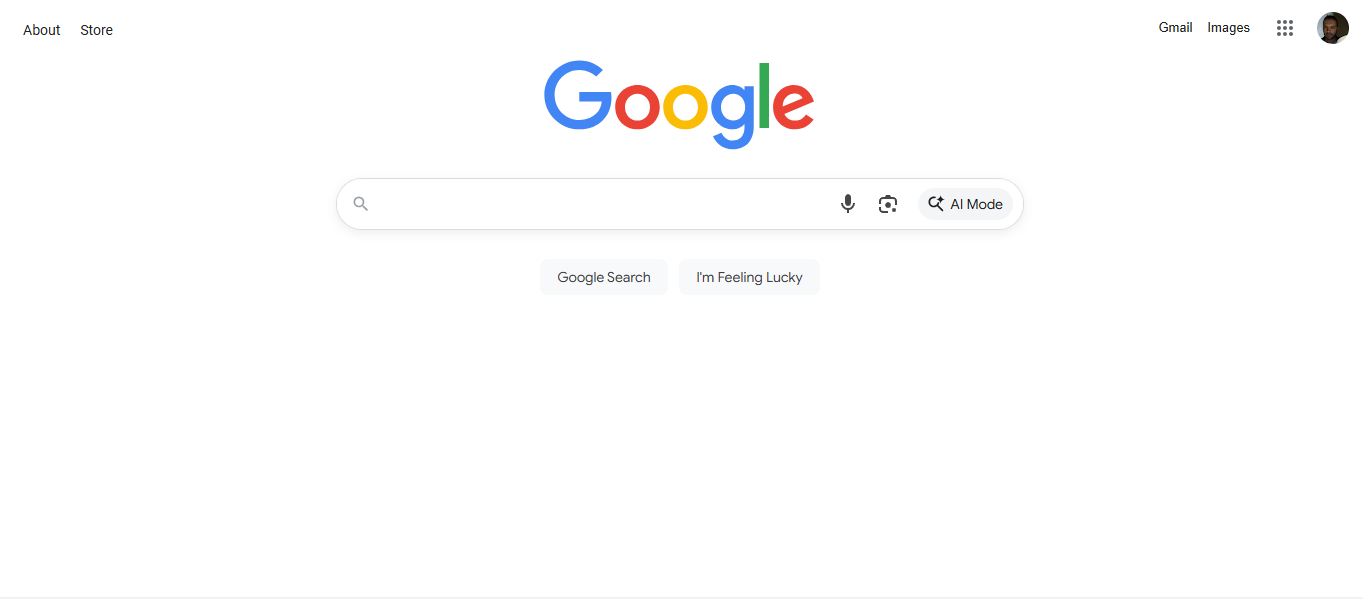
A screenshot from Google's landing page.

Google’s generous use of white space is a signature of their iconic and easy-to-use interface. White space (sometimes called “whitespace” or “negative space”) also helps other sites and applications set a strong visual hierarchy, and it needn’t always be white.

© Google, Fair use

Texture and Style

A rich illustration may draw more attention than a flat icon might do, lifting it and other styled elements off the screen and more “alive” to the eye. Use texture and style carefully to draw users’ eyes and help them enjoy a better experience for it.

How to Create a Strong Visual Hierarchy: Step-by-Step

A strong hierarchy leads your audience’s eyes to look exactly where you want them. Whether they’re navigating a product interface or looking at your slides, the same rules apply:

1. Respect Natural Scanning Patterns

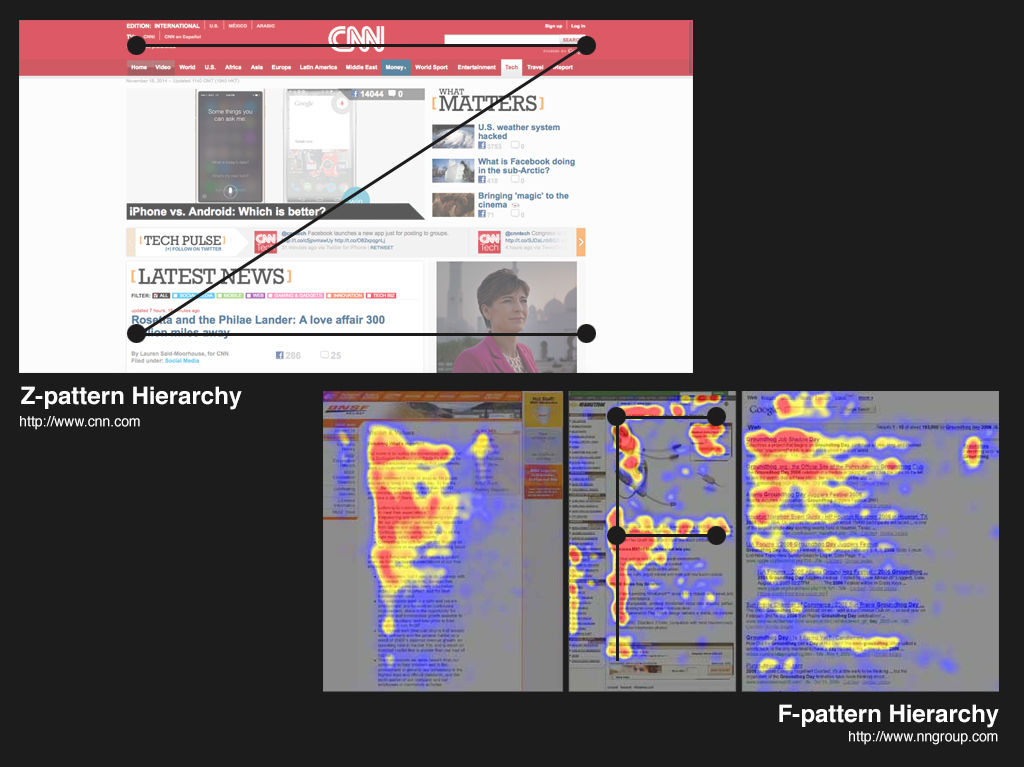
People in Western cultures tend to scan in an F-pattern (top to bottom, left to right) or a Z-pattern (top left → top right → bottom left → bottom right). Use these patterns to place key information where viewers and users will most likely see it.
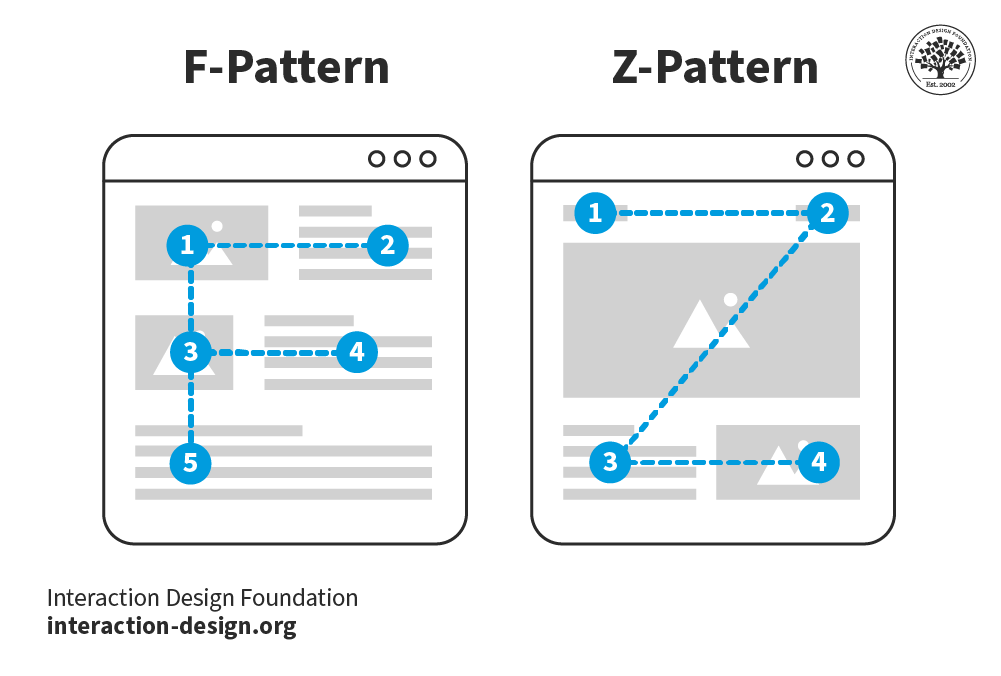
A diagram showing the F-shaped reading pattern and the Z-shaped reading pattern of how readers encounter material on screens.

© Interaction Design Foundation, CC BY-SA 4.0

2. Guide Attention with Deliberate Focal Points

Want to highlight one critical data point? Then break the pattern. For example, a centered statistic in bold text with generous white space can redirect attention right away.

3. Use Recognition over Recall

Make your content scannable. Well-made headers, bullets, and bold highlights let your audience recognize information quickly instead of struggling to remember it later.

4. Create a Sense of Ranked Importance

Not everything deserves the same emphasis, so decide what’s most important and then scale down the rest. You want users and viewers to find signals fast, but equal weight across all elements equals visual noise that tidal-waves senselessly into people’s eyeballs.

5. Leverage Typography

Present content in levels: use a large header for the core idea, a medium sub-header for context, and body text for details. Design guidelines often suggest, for example, a 3:1 ratio between headers and body text for clarity.

6. Be Consistent

Consistent icons, colors, and heading styles make your slides or products easier to follow. Inconsistency creates friction (questions like “Where has it gone?” and “Why is it over there?” arise in audience members’ minds) and breaks trust.

A screenshot showing the IxDF Master Classes page.

Color, contrast, typography; the list goes on to help users of all types find what they need fast on the Master Classes page.

© Interaction Design Foundation, CC BY-SA 4.0

Why Clear Slides Can Make You a Successful Presenter

In a similar way to how users who land on websites and applications want to find things quickly, in presentations, your audience has limited time and attention. A cluttered or chaotic slide forces them to read, interpret, and decide all at once, which means they’ll quickly disengage. Unlike what they can do, for example, on a website they don’t like (i.e., leave), they’ll feel “trapped” in a presentation and might not even let you know things are wrong.

Good visual hierarchy helps you engage your target audience in how it helps:

  • Keep attention on you. If your slides support instead of overwhelm or take over from your speech, your audience will be able to listen to your words and flow with them.

  • Highlight your key points. You decide what people remember by making those points visually dominant and supporting them in how you announce them, such as varying your tone or using silence around them to build emphasis or let key points sink in.

  • Signal professionalism. Clean, consistent visuals make you look credible and prepared, and that you haven’t cobbled together a quick and haphazard presentation just to “pass” yourself and get it out of the way.

Your slides are like your partner in a winning presentation, not your competitor that steals the show; so, use them to complement and amplify your voice.

How to Design Slides That Make People Trust You Instantly

Try some practical guidelines you can apply right away:

1. Keep Slides Simple

Simple can be so elegant and powerful, so limit each slide to one core idea. You can speak the supporting details and pace your presentation in a way that flows naturally.

2. Use Progressive Disclosure

If appropriate, reveal content step by step with animations, so your audience doesn’t feel overwhelmed with everything at once.

Explore how to keep audiences on board with progressive disclosure so they can take in everything you have to show them more successfully, in our video.

Transcript

3. Make the Headline Count

Think of the power of transmitting insights. For example, if you write “Key Findings,” that’s nowhere near as “newsworthy” as if you write: “58% of users drop out during checkout.” Headlines that state the insight directly help people remember it.

4. Prioritize White Space

Avoid the temptation to fill every corner; cramming doesn’t work and, aside from confusing people with cognitive overload, a busy slide can sometimes look amateurish. White space calms the eye and sets off what matters most with beautifully simple emphasis.

5. Use Visuals, Not Paragraphs

Replace text walls with icons, charts, or photos that reinforce your point. If you need to go into detail, keep it in your speaker notes or a written version of your slide deck you can refer to. Viewers can read ahead of your speaking, anyway, so keep things interesting and in sync for them.

6. Apply Consistent Styles

Choose two fonts (one for headings, one for body text) and stick to them. Because consistency doesn’t just help on the surface but also boosts trust, keep to an effective style and, if applicable, use your brand colors consistently to signal organization and credibility.

7. Think Accessibility

Check your contrast ratios so text is legible on screen. Avoid color combinations that exclude people with color vision disabilities.

Find a firmer foundation to build more accessible designs upon with a better understanding of color blindness, in this video.

Transcript

Examples of Visual Hierarchy in Slides

Example 1: A Slide to Present Research Findings

Not-so-good slide:

  • A dense paragraph describing all the findings.

  • Ten bullet points, all the same size, all clamoring for attention.

Better slide with good hierarchy:

  • Title: “3 Key Insights from Feedback Sessions”

  • Large, bold numbers (1, 2, 3) with short headlines:

  1. “58% drop at checkout”

  1. “Users skip product filters”

  1. “Confusion around shipping costs”

  • Small supporting notes under each.

The improved slide tells your audience instantly what matters most.

Example 2: A Slide to Pitch a New Feature

Not-so-good slide:

  • Feature name in small font.

  • Screenshot of the whole interface.

  • Multiple paragraphs describing the functionality of it.

Better slide with good hierarchy:

  • Title: “New Onboarding Flow = 40% Faster Sign-Up”

  • One large annotated screenshot with highlighted area.

  • Three short callouts explaining the benefits.

You lead with the outcome, then support it visually.

Example 3: A Slide to Share Data

Not-so-good slide:

  • A table of raw numbers.

Better slide with good hierarchy:

  • Title: “82% Want Mobile Alerts”

  • One large, bold percentage in the center.

  • A simple bar chart comparing responses.

The number jumps out first, and then the chart gives context.

How to Win Attention in Any Room

Presentations come in many forms: one-way, two-way, online, in-person, and even email updates. Make the best use of visual hierarchy for each context:

  • One-way updates: Keep slides simple. Your hierarchy should spotlight the most critical take-away since you won’t have much interaction.

  • Two-way workshops: Use visuals that encourage participation, such as sticky note layouts, numbered steps, or frameworks where you’ve clearly grouped input.

  • Online presentations: Use progressive disclosure and limit distractions on your screen. Hierarchy here isn’t only on slides; it’s also about your digital environment.

  • In-person talks: Emphasize big, bold visuals people can read from the back of the room. Your physical presence adds another layer of hierarchy: where you stand, where you point, and how you direct attention.

Explore how to cast your presence in presentations, in this video with Morgane Peng, Managing Director, Global Head of Product Design and AI Transformation.

Transcript

  • Email presentations: Since people read at their own pace, create strong written hierarchy with bold headlines, sub-headers, and scannable formatting.
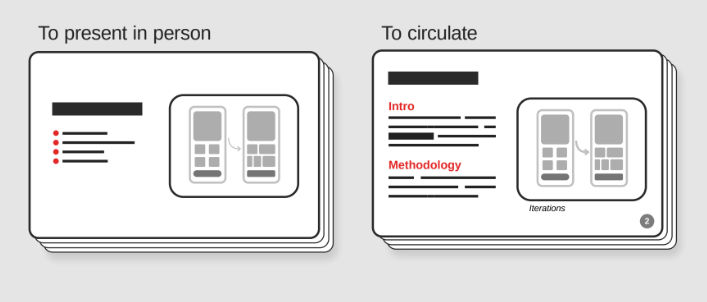
An illustration showing two slides, one to present in person, the other to circulate and with more detail on it.

© Interaction Design Foundation, CC BY-SA 4.0

Tap a Bonus Benefit: Bring Emotional Intelligence into Visual Hierarchy

Hierarchy isn’t just about visuals; it’s also about connection. In live presentations, your body language and tone become part of the visual experience, and you can mirror the visual hierarchy of your content by punctuating it with your delivery. One of the bonuses of having well-made slides is, as you rehearse your presentation, a good visual hierarchy can help you notice points easily and use them as naturally flowing “triggers” to expand on in your public speaking. As you become more confident with your material and delivery of it, you’ll have more bandwidth to be able to read the room and adapt strategically.

Explore how to read the room and shine with delivery approaches like the SOLER framework (Sit squarely, Open posture, Lean forward, Eye contact, and Relax), in this video with Morgane Peng.

Transcript

Overall, you can consider visual hierarchy a presentation partner, coaching a more confident delivery from you as it helps you pace your speech delivery and pace your audience’s attention so they can consume eagerly. Your points and the silence you place around them can land with more impact when you’re on point with how to show your material best.

In UX design, visual hierarchy ensures that users can find their way through a digital product. In presentations, it’s part of a reliable “formula” to help ensure your audience can follow your message, appreciate that you respect their time (especially important with business stakeholders), and remember your points. Visual hierarchy therefore plays an important role in how your viewers and users (of products and services who enjoy the experiences you provide them with) see you as a confident, credible professional they can agree with and support.


Questions About Visual Hierarchy?
We've Got Answers!

How do I create visual hierarchy?

To create visual hierarchy, you guide the viewer’s eyes through deliberate use of design principles like size, color, contrast, spacing, and alignment. Larger or bolder elements signal importance, while smaller or lighter elements recede into secondary roles.  

Consistent spacing groups related content, which helps users instantly understand structure without reading every word. Designers often apply Gestalt principles, such as proximity and similarity, to show relationships. On slides, that means making titles bigger and more dominant, placing supporting details below, and using whitespace to separate ideas. In UI (user interface) design, hierarchy often starts with headers, buttons, and calls-to-action, making sure users know where to click or read first.  

Do hierarchy well and it not only organizes content but also boosts engagement and trust with the people who arrive on your digital product or come to your presentation. 

Explore more about how to leverage the power of visual hierarchy in this video about visual frameworks. 

Transcript
 

What is an example of good visual hierarchy in UI design?

Since a user interface is interactive, in UI design clean, clear, and intuitive tappability affordances illustrate a good visual hierarchy, to ensure users can easily interact with the desired elements. 

Explore as, in this video, Frank Spillers: Service Designer, Founder and CEO of Experience Dynamics, walks you through each of these aspects that make an interface intuitive and shares best practices on what to do and not to do while designing an interface.

Transcript

Apart from traditional methods to visual hierarchy (such as size, color, contrast, etc.), Frank Spillers also shares examples of  strategically placed animations, such as pulsating buttons, to guide users towards expected interactions. When defining the visual hierarchy, it’s wise to have strategically animated and unambiguous elements, supporting the user's task and avoiding user frustration, uncertainty, and errors. Design with proper visual cues and clear interaction invitations and you’ll significantly improve user experiences and minimize confusion.

What role does contrast play in hierarchy?

Contrast is one of the most powerful tools for building visual hierarchy because it instantly draws attention. People’s brains are wired to notice differences, so contrasting elements stand out as more important. This contrast can come from color (e.g., a bright button on a muted background), size (large vs. small text), weight (bold vs. regular fonts), or even shape (rounded vs. square).

In presentations, contrast ensures your audience knows what to read or look at first; think bold headlines above lighter body text. In UI (user interface) design, contrast helps prioritize calls-to-action, ensuring users don’t miss crucial buttons. Accessibility guidelines (such as WCAG standards) also stress sufficient contrast for readability. Without contrast, everything looks equal, and nothing captures attention; certainly not what you want, so use it well and seize the opportunity to emphasize what’s important.

Discover further ways to apply contrast to great effect through the use of color in UX design.

How does alignment support hierarchy?

Alignment reinforces hierarchy though how it creates visual order and makes content easier to scan. When elements line up consistently, the eye naturally follows those lines, which reduces cognitive effort. For example, align text to the left and you can create a predictable reading rhythm, while misaligned blocks look scattered and unprofessional.

In slide design, consistent alignment between titles, subtitles, and body text makes the structure instantly clear. In user interfaces, alignment ensures that forms, navigation, and buttons feel intentional, which improves usability and credibility.

Even subtle misalignment can distract users and erode trust; so, use it well and strategically. Alignment doesn’t just keep things tidy; it communicates relationships, too. Centered headlines may draw attention, but aligned body text often reads faster and feels more structured.

Take visual alignment as one of the most important design “allies” to help you create better screens, slides, and other designs.

Why is spacing so important?

Spacing, often called white space or negative space, is critical for visual hierarchy because it tells the viewer what belongs together and what doesn’t. When items are close, people assume they’re related (the Gestalt law of proximity). When they’re separated, people see them as distinct.

In presentations, increase the space between a title and its body text to make the title feel more important. In UI design, use of spacing makes forms and menus easier to navigate because users can quickly spot groups of related options.

Adequate white space reduces cognitive load, too, and helps users focus on the key message instead of clutter, increasing comprehension and user satisfaction. So, use good spacing to organize information, improve readability, and build trust with whoever is encountering the screen you show them.

Discover how to use “nothing” to help make something great to look at (and use) with white space.

How does typography affect hierarchy?

Typography is one of the clearest ways to build hierarchy through text, as the right use of fonts, weights, sizes, and styles tell the audience what to read first and what can wait. For instance, large bold headers naturally take priority, while smaller regular text supports them.

In presentations, use consistent font families with varied weights (bold, semi-bold, regular) instead of mixing many fonts, which looks unprofessional. In UI (user interface) design, typography hierarchy often follows an H1–H6 structure: headings guide scanning, while body copy fills in detail.

Line spacing and letter spacing matter, too: if they’re too tight, it’ll feel cramped; too loose and the flow will break. Clear and effective typographic hierarchy speeds up scanning, reduces reading fatigue, and keeps users engaged with content and on the same page with you.

Enjoy our Master Class The Tone of Typography: A Visual Communication Guide with Mia Cinelli, Associate Professor of Art Studio and Digital Design, University of Kentucky.

Should I always put the most important element at the top?

Not always, but the most important element must be the most noticeable. Placement is a powerful signal of importance, but it isn’t the only one. On slides, a headline usually sits at the top, but you can also highlight priority through size, boldness, or color. In web and app design, top placement works well for navigation bars or critical calls-to-action.

Still, designers also use focal points (such as a brightly colored button in the middle of a page) to draw immediate attention. The key is visibility, not just location. If everything looks equal, nothing stands out. The take-away: the “top” is a strong cue, but hierarchy depends on overall dominance, not just vertical order.

Explore how to make things stand out better in more outstanding screens, in our article Emphasis: Setting up the focal point of your design.

How do I use hierarchy in slide titles?

As slide titles set the stage, you’ll want them to stand out as the clearest entry point on each slide. You establish hierarchy by making titles larger, bolder, and often in a different weight than the body text.

Spacing is crucial, too: the gap between the title and the content should be bigger than the gap between paragraphs. This instantly signals the title’s role and why it’s important. Make titles concise, ideally written as meaningful statements instead of vague labels. For example, instead of “User Research Findings,” write “56% of Users Struggle at Checkout.” This headline immediately communicates insight and draws attention. Well-crafted titles improve scannability, guide your audience’s focus, and anchor your message in both live and circulated presentations, helping captivate eyes that seek value in your message.

Get more from your slides when you understand more about the power of visual hierarchy, in our article Visual Hierarchy: Organizing content to follow natural eye movement patterns.

Should I use many fonts to show hierarchy?

No; it’s best to limit fonts and use variations within them to create hierarchy. Multiple fonts can look chaotic, making your design feel unprofessional and harder to read. Most presentation and UI design guidelines recommend sticking to one or two font families. You can then build hierarchy with weight (bold vs. regular), size (large headers vs. smaller body text), and style (italic for emphasis).

For example, use consistent font systems across all slides to maintain credibility in presentations. In user interfaces, this principle holds true: Google’s Material Design guidelines emphasize a typographic scale where hierarchy comes from consistent size and weight, not random font choices. When you keep fonts minimal, it creates clarity, focus, and trustworthiness in your design.

Explore how to make the best of all the possibilities with fonts for more captivating screens in the article How to Pair Fonts: A Practical Guide.

How do I structure text on slides?

Structure text so that your audience instantly sees the hierarchy. Start with a clear, bold title at the top, then use larger spacing below it than between body text lines.

Keep paragraphs short and scannable, breaking complex ideas into bullet points if needed. Don’t cram too much text; remember, slides should support your spoken words, not replace them. Use bold or color sparingly to highlight keywords or figures.

In UI design, a similar principle applies: headings group information, while subpoints give supporting detail. Viewers and users scan rather than read, so structured text must allow key points to pop quickly. When your slide text has a logical hierarchy, it reduces confusion and keeps your audience focused and on the same page (or slide) as you.

Check out helpful ways to structure text that can make more impact visually, in the article The UX Designer’s Guide to Typography.

How do I prevent my slides from looking cluttered?

To prevent clutter, focus each slide on a single idea and strip away anything that doesn’t serve it. Clutter distracts your audience and dilutes hierarchy, which makes your message harder to follow and audience members more likely to tune out.

Use white space generously to separate ideas, and avoid overloading slides with text or graphics. Limit yourself to one or two fonts, consistent colors, and a clear structure of titles and supporting text.

Animations can help reveal information step by step rather than all at once. In UI (user interface) design, clutter creates the same problem: users feel overwhelmed and will tend to abandon tasks. Clean slides aren’t about minimalism for its own sake, but about clarity and keeping your target audience on target with the points you make.

Strip back to basics for a strong foundation in visual design, in our article The Key Elements & Principles of Visual Design.

What Gestalt law helps most with hierarchy?

The Gestalt law of proximity is one of the most powerful for hierarchy. The law, or principle, of proximity states that items you place close together appear related, while those spaced apart seem separate to those viewing them.

In presentations, grouping text and visuals creates clear sections. Titles belong to their paragraphs because they’re closer together than to other slide elements. In UI (user interface) design, proximity helps users navigate forms, menus, and dashboards without confusion. For example, labels should sit close to their input fields so users know that they’re connected.

Proximity works with other Gestalt principles too, like similarity (consistent fonts or colors for related elements) and figure-ground (making sure foreground elements stand out). Together, they form the backbone of visual hierarchy, turning complex information into an easy-to-scan structure.

Get a greater grounding in Gestalt laws so you can command more effective designs.

What mistake breaks hierarchy fastest?

The fastest way to break hierarchy is inconsistency. If fonts, colors, or layouts change unpredictably, the entire design loses credibility. Visual inconsistency creates subtle disorganization, which people’s brains interpret as careless and unreliable. For example, if one presentation slide uses blue titles, another uses red, and a third mixes in different fonts, the audience no longer knows where to look first.

In UI (user interface) design, inconsistency can frustrate users. Imagine buttons that change size or style across screens. Consistency is a vital key for recognition and trust; when it’s broken, people slow down and question the system and even the brand behind it. Strong hierarchy depends on predictable patterns so brains don’t have to question what eyes see. Without predictable patterns, your audience gets distracted instead of engaged.

Consider how to consistently make consistency matter as a main ingredient, in the article Consistency: MORE than what you think.

What are some helpful resources about visual hierarchy?

Lupton, E. (2010). Thinking with Type (2nd ed., revised and expanded). Princeton Architectural Press.

Thinking with Type is Ellen Lupton’s authoritative guide to typography, widely used in design education and professional practice. The official page outlines the book’s structure (“Letter,” “Text,” and “Grid”) and highlights how type is both a functional tool and an expressive medium. Lupton explains how typographic choices affect readability, hierarchy, and meaning. The site notes that the book includes examples, exercises, and discussions of digital typography. Visual hierarchy is emphasized as a key outcome of type use: scale, weight, and spacing signal importance and guide the reader’s eye. The book is important because it bridges design history, theory, and practical application, making typography accessible and actionable for designers and communicators.

Knight, C., & Glaser, J. (2013, February 5). Creating Exciting And Unusual Visual Hierarchies. Smashing Magazine. https://www.smashingmagazine.com/2013/02/creating-visual-hierarchies-typography/

In Creating Exciting and Unusual Visual Hierarchies, Carolyn Knight and Jessica Glaser explore how typography and layout design can enhance user engagement through deliberate and creative control of visual hierarchy. Drawing from examples across graphic and web design, the authors examine how tone, texture, color, font combinations, and grids contribute to prioritizing content and guiding readers. The article emphasizes the importance of the designer adopting the role of the reader to effectively communicate meaning. This work is important for UX/UI and graphic designers as it bridges typographic theory with practical application, encouraging thoughtful design choices that elevate both function and aesthetic appeal.

Webflow Team. (2023, May 26). 7 visual hierarchy principles for web design. Webflow. https://webflow.com/blog/visual-hierarchy

In 7 Visual Hierarchy Principles for Web Design, the Webflow Team outlines practical techniques that help designers guide user attention and create more intuitive digital experiences. The article explores core visual hierarchy strategies such as reading patterns (Z and F), rule of thirds, scale, typography, contrast, white space, and proximity. It also features real-world examples that illustrate these principles in action. This guide is significant because it distills key cognitive and perceptual principles into actionable design tactics, equipping web designers with tools to improve usability, clarity, and conversion: all without needing to code.

Earn a Gift Earn a Gift, Answer a Short Quiz!

1
2
3
4
1
2
3
4
Question 1
Question 2
Question 3
Get Your Gift
Interaction Design Foundation logo

Question 1

What is the primary purpose of visual hierarchy in design?

1 point towards your gift

  • To arrange elements to show their order of importance
  • To create a random layout
  • To use as many colors as possible
Interaction Design Foundation logo

Question 2

Which element do designers NOT typically use to establish visual hierarchy?

1 point towards your gift

  • Audio
  • Color
  • Size
Interaction Design Foundation logo

Question 3

How does alignment contribute to visual hierarchy?

1 point towards your gift

  • It creates disorder in the layout.
  • It places elements randomly.
  • It clearly organizes elements.

Learn More About Visual Hierarchy

Make learning as easy as watching Netflix: Learn more about Visual Hierarchy by taking the online IxDF Course Visual Design: The Ultimate Guide.

Why? Because design skills make you valuable. In any job. Any industry.

In This Course, You'll

  • Get excited when you use visual design principles to create impressive visuals people love! Great visual design makes the message clear, memorable, and persuasive—whether it's an app, a logo, or a presentation slide. You'll learn what makes a design excellent and how science and culture influence what works and what doesn't. You'll create designs that truly connect with people. Visual design isn't just about beauty—it's about shaping ideas that inspire action, build trust, and give meaning to your work. As AI makes visual production faster and cheaper, you stay in demand when you can turn rough or AI-generated visuals into successful designs that get approved, adopted, and used. If you want to stand out with timeless human-centered design skills, this course is for you.

  • Make yourself invaluable with practical design skills that amplify your impact in any industry! Did you know that you only have 50 milliseconds to make a good first impression? Great visual design ensures you pass the test every time. You'll learn to use visual elements to guide emotions, influence purchasing decisions, and optimize User Experience (UX) and User Interface (UI) design. You'll master color theory, typography, and grid systems to improve usability, build credibility, and create designs that stop the scroll.

  • Gain confidence and credibility as you fast-track results with step-by-step exercises and downloadable templates! Complete optional tasks to walk away with portfolio-ready case studies that will help you land your dream job and advance your career. You'll get hands-on and design a low-fidelity wireframe, apply a monochromatic, complementary, or triadic color scheme, choose typefaces, and select a grid system. It's easier than you think! No matter your background, you can master Visual Design. With clear guidance and real-world examples, you'll apply your skills right away. This course will give you the visual design skills you need to solve design challenges, collaborate smarter, and make it easy for decision-makers to say yes to your vision.

It's Easy to Fast-Track Your Career with the World's Best Experts

Master complex skills effortlessly with proven best practices and toolkits directly from the world's top design experts. Meet your experts for this course:

  • Mia Cinelli: Associate Professor of Art Studio and Digital Design at the University of Kentucky.

  • Joann Eckstut: Color Consultant, Founder of The Roomworks, and one of the 12 designers chosen by the Color Association of the USA to create the yearly forecast used by industries to keep up with color trends.

  • Arielle Eckstut: Author, Agent-at-large at the Levine Greenberg Rostan Literary Agency, and Co-Founder of The Book Doctors and LittleMissMatched.

Get an Industry-Recognized IxDF Course Certificate

Increase your credibility, salary potential and job opportunities by showing credible evidence of your skills.

IxDF Course Certificates set the industry gold standard. Add them to your LinkedIn profile, resumé, and job applications.

Course Certificate Example

Be in distinguished company, alongside industry leaders who train their teams with the IxDF and trust IxDF Course Certificates.

Our clients: IBM, HP, Adobe, GE, Accenture, Allianz, Phillips, Deezer, Capgemin, Mcafee, SAP, Telenor, Cigna, British Parliament, State of New York

All Free IxDF Articles on Visual Hierarchy

Read full article
Visual Hierarchy: Organizing content to follow natural eye movement patterns - Article hero image
Interaction Design Foundation logo

Visual Hierarchy: Organizing content to follow natural eye movement patterns

Let’s look at a topic that deals with, oddly enough, how we look at designs. Once you understand how the human eye processes these, you’ll find yourself better able to arrange your elements more effectively.Content in any digital page layout will follow a specific hierarchy. Headers appear above bod

Social shares
1.3k
Published
Read Article
Read full article
The Key Elements & Principles of Visual Design - Article hero image
Interaction Design Foundation logo

The Key Elements & Principles of Visual Design

Visual design is about creating and making the general aesthetics of a product consistent. To create the aesthetic style of a website or app, we work with fundamental elements of visual design, arranging them according to principles of design. These elements and principles together form the building

Social shares
1.4k
Published
Read Article
Read full article
Display Contents the Classic Way with Dropdown Menus - Article hero image
Interaction Design Foundation logo

Display Contents the Classic Way with Dropdown Menus

The dropdown menu goes all the way back to the Start menu of the most classic Microsoft Windows versions. Now, you can find it nearly everywhere: from newspaper websites to online shops, and from graphic design applications to text-editing software. It has helped users time and time again to access

Social shares
700
Published
Read Article
Read full article
Embrace the Mental Models of Users by Implementing Tabs - Article hero image
Interaction Design Foundation logo

Embrace the Mental Models of Users by Implementing Tabs

Users of all ages will still remember the tabbed file folders people used to bring order into a vast amount of information and make it super simple to find what they were looking for. If you’re trying to design a good way to prevent your users from having to search for a needle in a haystack every t

Social shares
710
Published
Read Article
Read full article
Search for Items with Scrolling Lists, Archive Lists or List Inlays - Article hero image
Interaction Design Foundation logo

Search for Items with Scrolling Lists, Archive Lists or List Inlays

Even if you’re not the to-do list maniac like some of us, lists are a great way to deliver content to your users. A list allows them to navigate quickly to the section of content that is most relevant to them, while maintaining an overview of the entire body of information that is accessible. It als

Social shares
670
Published
Read Article
Read full article
Split the Contents of a Website with the Pagination Design Pattern - Article hero image
Interaction Design Foundation logo

Split the Contents of a Website with the Pagination Design Pattern

The pagination design pattern is widely used in websites that open up a lot of content to users. From search engines such as Google and Firefox, to e-commerce sites such as Amazon and Asos—the use of pagination is very, very broad. And although it seems straightforward, implementing pagination in th

Social shares
817
Published
Read Article

Visual Hierarchy: Organizing content to follow natural eye movement patterns

Visual Hierarchy: Organizing content to follow natural eye movement patterns

Let’s look at a topic that deals with, oddly enough, how we look at designs. Once you understand how the human eye processes these, you’ll find yourself better able to arrange your elements more effectively.

Content in any digital page layout will follow a specific hierarchy. Headers appear above body text. Menus go at the top, bottom, left, or right of the screen (or any combination of these). Designers try to organize content so that they present the highest priority content on any given page first. Then, they deliver the rest of the content from highest to lowest priority.

“Hierarchy” is simply a nicer way of saying organized from most to least important. We also use “hierarchy” to show relationships (where relationships exist) between content blocks.

Users define the visual hierarchy of a website or app. The item that first grabs the eye’s attention is at the top of the hierarchy. Each item that next draws attention is subordinate to the one before it.

Hierarchy Principle

Author/Copyright holder: Digital Markketing. Copyright terms and licence: CC BY 2.0

The human eye perceives information visually rather than as blocks of data. Unlike computers, we’re at the mercy of our eyes’ natural tendencies. The reading material we likely encountered as young children featured many pictures and larger print. Whether these were comics, coloring books, or story books, we could take in what was going on because we perceived the illustrations and interpreted the sequence of events alongside the easy-to-read text.

The way we perceive information is affected by several factors that contribute to how we rank the hierarchy of the content within the layout. Jones (2011) showed that the factors that affect hierarchy include:

  • Size: The larger the element, the more attention it will attract, compared to smaller elements. Think of a newspaper headline. The newspaper uses that (large font) header text to signal what the rest of the text (in smaller font) will deliver. Let’s take a hypothetical “breaking story”. Your eye should go right to the headline. Notice how it dominates, spurring you to find out what it’s about?

  • Color: Bright colors are more likely to draw attention than drab shades. We’ve probably all used a highlighter to mark outstanding points on a photocopied handout. Yellow is richer and brighter than white (in the sense that white is more muted), so it stands out. After bright colors, richer and darker ones will grab the eye’s attention. Lighter tints follow, because they seem more washed out and distant. At the bottom of the color hierarchy are the grayscale or muted, subdued colors. Think of a foggy day, and you’re trying to find four friends. One wears a hi-vis vest: he’ll stand out first; the one in a deep burgundy trench coat will stand out next. Someone’s wearing a cream-colored long coat; she’ll be harder to spot. You meet up with each other and start talking, asking where Jim is. Unfortunately, Jim is wearing a smoky gray hoodie and matching sweatpants. He’s seen you all already, though.

  • Contrast: Dramatically contrasting colors will catch the eye more than slightly contrasting colors. Contrast helps you show what’s more important in your design. Everything is relative. Imagine you want to make a design based on an architect’s plan for high-rise apartment blocks. You want to show the light, airy and eco-friendly buildings above ground, but you also need to show the strong, deep foundations and underground car park below. By dividing your design in this way, you’ll draw the eye to the cheery living features of the forest-side apartments. This plays off against the lower section—the footer—where you’re showing the utility and safety side of the structures. A little hierarchy goes a long way to engaging the user.

  • Alignment: Alignment can create order between design elements. For example, placing content and then a sidebar column creates a priority for the reader. We expect important information (such as login buttons) to be in the top right-hand corner of a page. We also see this at work in magazines. If you’re near one, why not flick through; look out for a pull quote. That’s part of, say, an interview, where the writer wants to highlight what the subject said. With its larger font and its break with the alignment of the other text, it makes a hierarchy that draws our eye first.

  • Repetition: Repeating styles can give the viewer a sense that content is related. For example, we’ve presented most of the text in this document in a similar fashion. If we broke that style, say, by using red text, it could quickly draw attention from the familiar surroundings. It worked, didn’t it? What if we did it again? Another good example is hyperlinks. When you visit a page that has lots of blue words underlined, you know right away that you can click to a lot of other pages.

  • Proximity: How closely we place design elements to each other tells our users how likely they are to be related. In our list, we’ve separated items with a single row of whitespace. We don’t separate headers in this lesson from the first paragraph of information. This proximity shows that list items are separate (though not so much as to be completely unrelated to each other) but that headers are related to the content that follows.

  • Whitespace: You can use the space around content (it can be any color, not just white) to draw attention to certain pieces of content. Imagine how much work you’d have without it! It does two jobs: it makes information easier for the eye to digest, and it lets the eye zero-in on each area of information (paragraphs in this case).

  • Texture and style: The use of textures and styles can help prioritize content, too. Like fonts, they can set the tone of the design. Imagine a pair of projects. Two travel agents want a landing page to show their resort package deals. One is beach-themed, one lake-themed. For the beach-themed resort, we presented a background close-up view of the clear water overlying beautiful white sand. The effect was pleasing. However, when we tried repeating that with the lake, we found that the crystal clear water gave us a lot of large, dark pebbles and stones. That texture ended up being too distracting because it was far more textured than the smooth sand.

“Eye-Catching Designs Need Psychology"

Reports from Copenhagen confirm that more designers, especially web designers, are appreciating the need to engage users more directly. Reaching back into their art school days while working a little psychology into the mix seems to do the trick.

Hierarchy Patterns


There are common patterns for hierarchy both on the printed page and for the digital page. These patterns are based on the movements that our eyes tend to make when presented with a fresh page. English, for example, is read from left to right. English readers have a set scanning pattern when facing a page of text. Arabic readers have a different pattern. Why? It’s because Arabic is read from right to left.

It’s important to understand how your audience processes information before adopting a hierarchy pattern. As this lesson is in English, we’ve included two common left-to-right patterns here:

Z Pattern

Author/Copyright holder: Supermariolxpt. Copyright terms and licence: CC BY-NC-ND 2.0

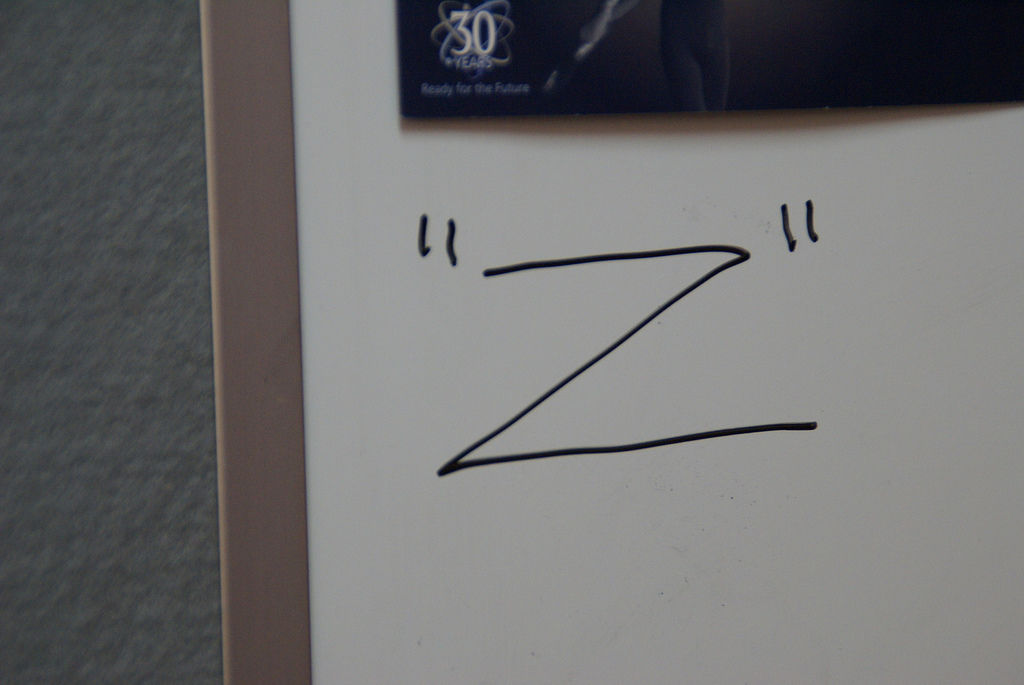
In websites with a low level of text content (e.g., websites that act as small advertisements for a business or a product rather than delivering volumes of information), the Z pattern of eye scanning is common. The user sees the “text-lite” page and scans from the top left to top right, then glances down through the content (following a diagonal) to the bottom left, before moving to the bottom right.

You can make use of this pattern by ensuring that you include the most important information along the Z pattern this eye movement follows. You’ll have four points joined by three lines going in a Z-shape.

F Pattern

Designers usually apply the F pattern on websites that include text-heavy content and/or video content.

With the F pattern, users begin by scanning left to right along the top, but then scan down the left side of the page, looking for visual clues to the information they seek. When they find such a clue, they scan from left to right. They repeat this process until they reach the end of the page.

This scanning pattern often produces a heat map that looks like the letter “F”, as shown in the image at the top of this article.

It’s perfectly possible to use both Z and F pattern pages on the same website. For example, you might have a very clean homepage that utilizes the Z pattern; however, when the user delves deeper into the site, you might present much more data and use an F pattern instead.

The Take Away

Hierarchies give us order to make sense of a design easily. We want to prioritize headers and menus according to how we know what our users want and what we want them to do. We process information visually, perceiving elements in the order in which the designer has emphasized them according to:

  • Size — Larger elements will dominate and catch eyes first.

  • Color — Bright colors catch eyes ahead of muted, drab ones.

  • Contrast — Stark differences between elements draw eyes to the brighter one.

  • Alignment — Users expect to find certain elements in the same place.

  • Repetition — A repeated quality (e.g.,colored parts of text) draws the user’s eye.

  • Proximity — Putting related elements (e.g., header with associated text) close together means these are related.

  • Whitespace — Including whitespace around elements singles them out as separate groups of information.

  • Texture and Style — Using distinct textures/styles (e.g., chunky, military-style buttons) draws the eye while setting the theme.

In the Western World, we read designs according to two common hierarchical patterns:

The Z Pattern — In designs without much text, our eye starts scanning from top left to top right, then diagonally down to bottom left, stopping at the bottom right.

The F Pattern — In designs with more text, we scan across the top, from left to right, then down the left, searching for clues to what we want to know. On finding one, we’ll scan across to the right.

You have your user’s eye to guarantee that you can include these factors to make more effective designs. Keep all of these in mind as you plan. Your best effort might involve using them all, including a fusion of the Z and F patterns. Remember that you’re designing for your users. What are they using, and how might they want to see it online?

Where To Learn More

Course: The Ultimate Guide to Visual Perception and Design

Jones, B. (2011) Understanding Visual Hierarchy in Web Design.Web Design Tuts Plus. http://webdesign.tutsplus.com/articles/understandi...

Bank, C. (2015).“Understanding Web UI Visual Hierarchy

Bradley, S. (2015). “Design Principles: Dominance, Focal Points And Hierarchy

Cao, J. (2015). “The 5 Pillars of visual hierarchy in Web design”. The Next Web/TNW.

Feel Stuck?
Want Better Job Options?

AI is replacing jobs everywhere, yet design jobs are booming with a projected 45% job growth. With design skills, you can create products and services people love. More love means more impact and greater salary potential.

At IxDF, we help you from your first course to your next job, all in one place.

See How Design Skills Turn Into Job Options
Privacy Settings
By using this site, you accept our Cookie Policy and Terms of Use.
Customize
Accept all

Be the One Who Inspires

People remember who shares great ideas.

Share on:

Academic Credibility — On Autopilot

Don't waste time googling citation formats. Just copy, paste and look legit in seconds.