Accessibility

Your constantly-updated definition of Accessibility and collection of videos and articles.
Be a conversation starter: Share this page and inspire others!

2,012 Shares
Save

Get 1 Powerful Email Each Week

Join 313,014 subscribers.

What is Accessibility?

Accessibility is the concept of whether a product or service can be used by everyone, regardless of how they encounter it. Accessibility laws exist to aid people with disabilities, but designers should try to accommodate all potential users in many contexts of use. To do so has firm benefits—notably better designs for all.

Transcript

A11Y—Accessibility’s Other Name

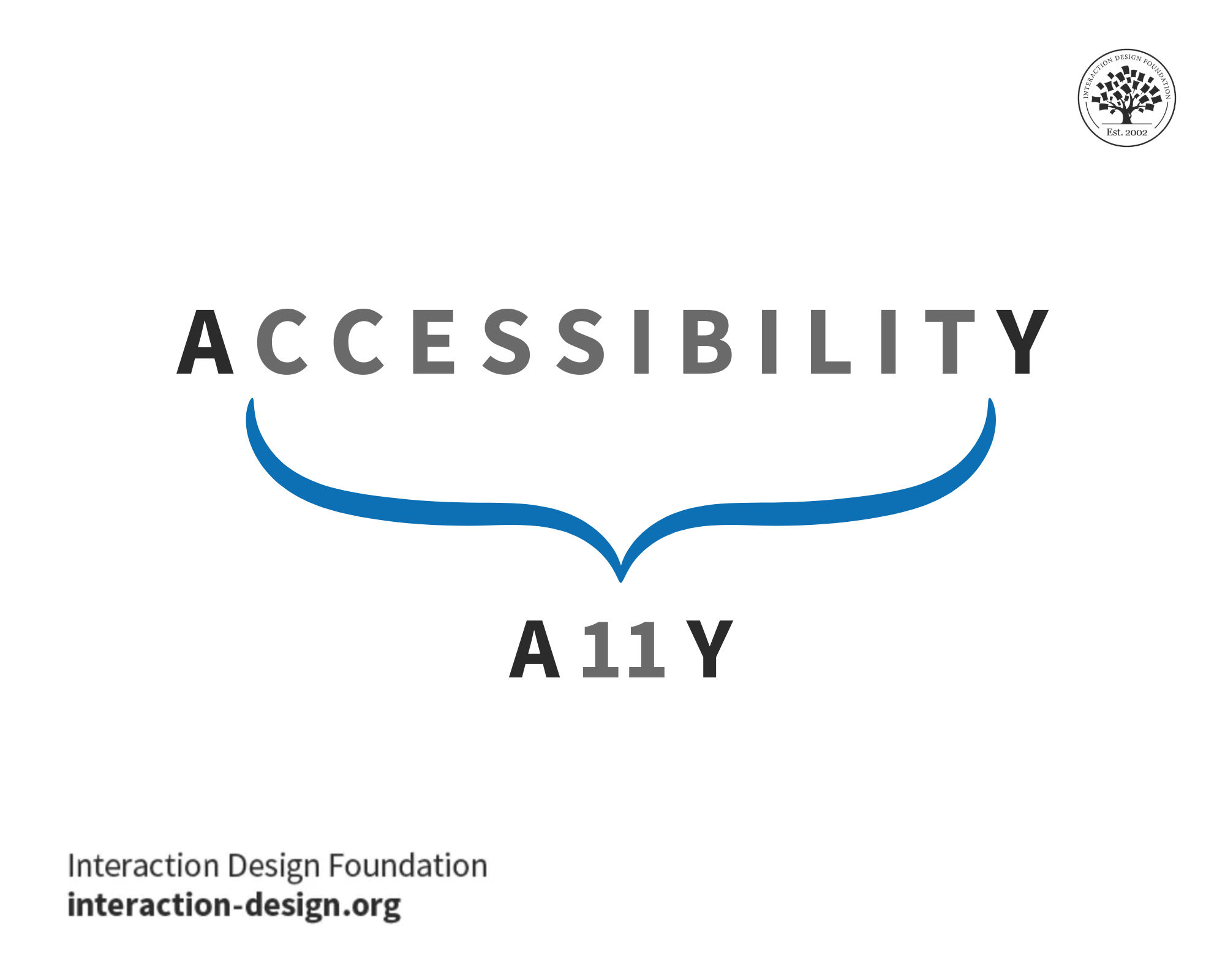
A11Y is the abbreviation—a numeronym, to be exact—for accessibility, where “11” represents the number of letters between the letters A and Y. Often, people in the design field use the shorthand on social media or in blogs when they refer to accessibility-related topics and have a limited word or character count. 

We can pronounce A11Y as “A-one-one-Y,” “A-eleven-Y” or even as “ally,” but it’s best just to say “accessibility.” As with most abbreviations, A11Y is a form of jargon, so be sure to clarify its meaning upfront with any audience that might not understand it, whether in writing or verbally. 
Remember, when designers create products and services with accessibility in mind, they often design better products for everyone. No matter the name, A11Y is key to inclusive design.

© Interaction Design Foundation, CC BY-SA 4.0

Accessibility vs Usability
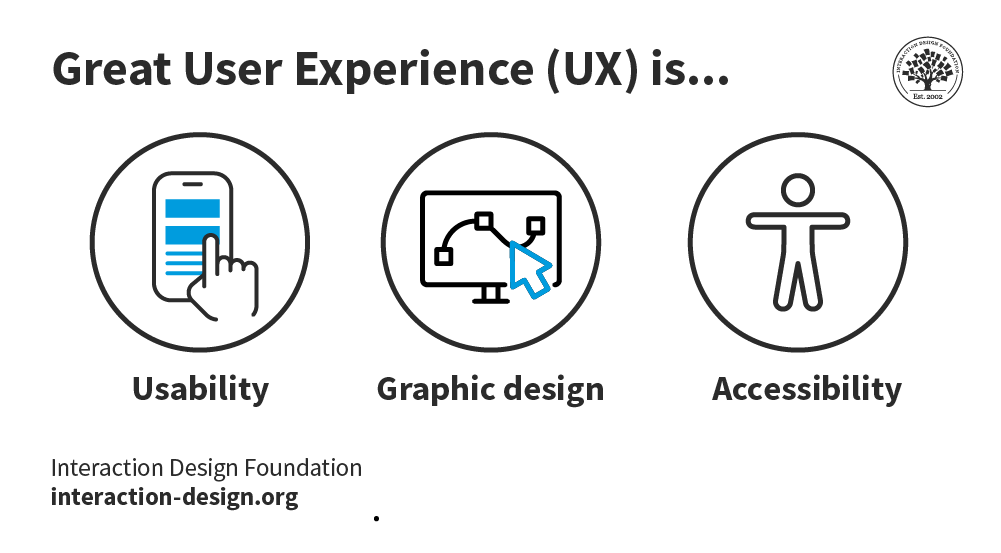
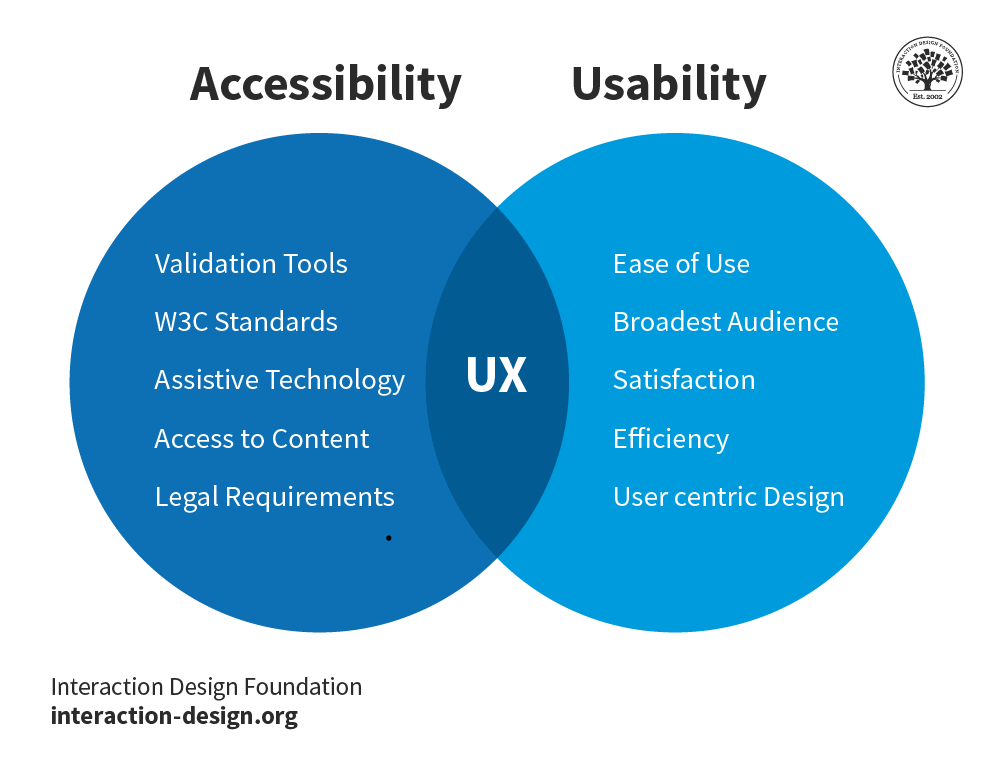
Since they have similarities, accessibility is sometimes confused with usability. Both overlap and are vital parts of user experience (UX) design, but there are also key distinctions between them. Usability is concerned with whether designs are effective, efficient and satisfying to use.

Transcript

Theoretically, this means that usability includes accessibility, since a product that is inaccessible is also unusable to someone with a disability; practically, however, usability tends not to specifically focus on the user experience of people with disabilities. Accessibility, on the other hand, is concerned with whether all users are able to access an equivalent user experience, however they encounter a product or service (e.g., using assistive devices). Unlike usability, accessibility focuses on people with disabilities.
© Interaction Design Foundation, CC BY-SA 4.0

Accessible Designs Help Everyone

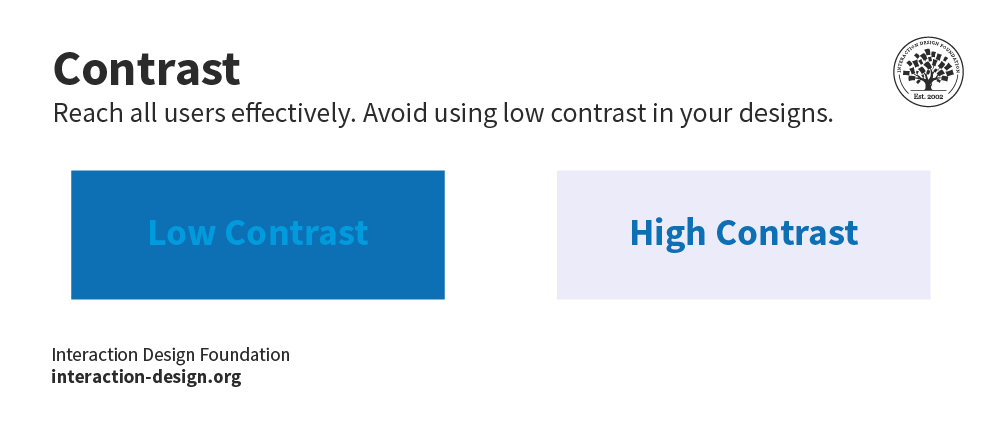
Accessibility is not only the right thing to do, but it also often benefits all users. That’s because accessibility features that help people with disabilities often benefit others, too. For instance, video captions that help people with hearing difficulties also help a person who is watching the video on mute (e.g., in a social media feed). Legible, high-contrast text that helps people with vision difficulties also benefits people with perfect eyesight who use the app outdoors in bright sunlight. Many users, regardless of their abilities, will face challenges in demanding contexts. When you design for all ability levels, you can create products and services anyone can use and enjoy—or at least find helpful or calming.

Although accessibility is a critical factor that impacts design, many brands overlook it. Based on a 2026 World Health Organization report concerning disability, however, you’ll exclude about 16% of Earth’s population if you don’t make your design accessible. Furthermore, many jurisdictions, including the E.U., have penalties for failure to create accessible designs. However, designing for accessibility makes sense on more than a legal level; it brings benefits, including these:

  • Improved SEO from semantic HTML

  • Opportunities to reach more users on more devices, in more settings/environments

  • Enhanced public image for your brand

Types of Accessibility Issues

You should consider the number and types of potential accessibility issues users will have. These are common barriers:

  • Visual (e.g., color blindness)

  • Motor/mobility (e.g., wheelchair-user concerns)

  • Auditory (hearing difficulties)

  • Seizures (especially photosensitive epilepsy)

  • Learning/cognitive (e.g., dyslexia)

Ability barriers can also arise for any user:

  • Incidental (e.g., sleep-deprivation)

  • Environmental (e.g., using a mobile device underground)

© Interaction Design Foundation, CC BY-SA 4.0

The possibilities are virtually limitless regarding who might be trying to access your product/service.

“When UX doesn’t consider ALL users, shouldn’t it be known as “SOME User Experience” or… SUX?”

— Billy Gregory, Senior Accessibility Engineer
© Interaction Design Foundation, CC BY-SA 4.0

Practical Guidelines for Accessibility

The World Wide Web Consortium (W3C) stipulates standards for accessible design in its latest Web Content Accessibility Guidelines (WCAG). You can follow these essential points to accommodate users with diverse abilities:

  • Use a content management system (CMS) supporting accessibility standards (e.g., WordPress). Whenever you amend a pre-used template, ensure the themes are designed for accessibility.

  • Include secondary personas to make accessibility needs explicit.

  • Use header tags in the text (ideally, use CSS for consistent styling). Move consecutively from one heading level to the next (without skipping).

  • Use alt text on content-enhancing images.
    Examples of alt tag for a glass for red wine. One says "Wine", which is not helpful. The other says "Shop for red wine" which tells users the purpose of the image.

    © Interaction Design Foundation, CC BY-SA 4.0

  • Ensure that links make sense in isolation – e.g., “Read more about the Interaction Design Foundation,” rather than “Read more about the Interaction Design Foundation, at their website.” Offer visual cues (e.g., PDF icons), underline links and highlight menu links on mouseover.

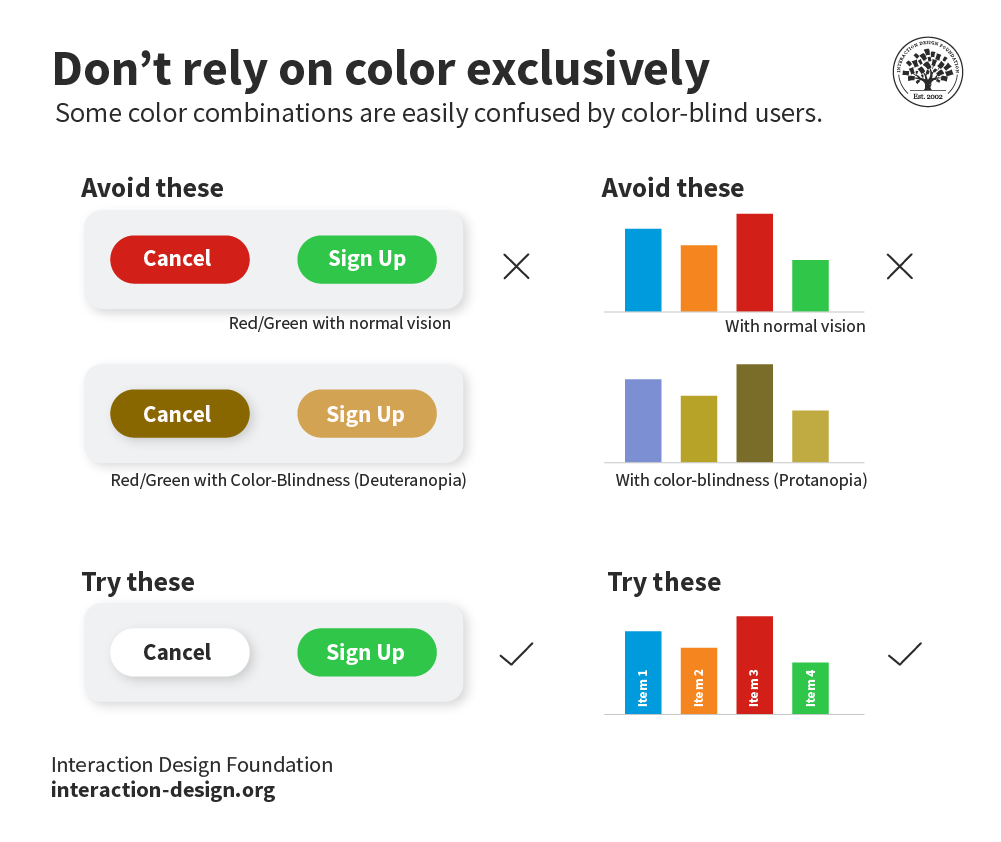
  • Improve visibility with careful color selection and high contrast.
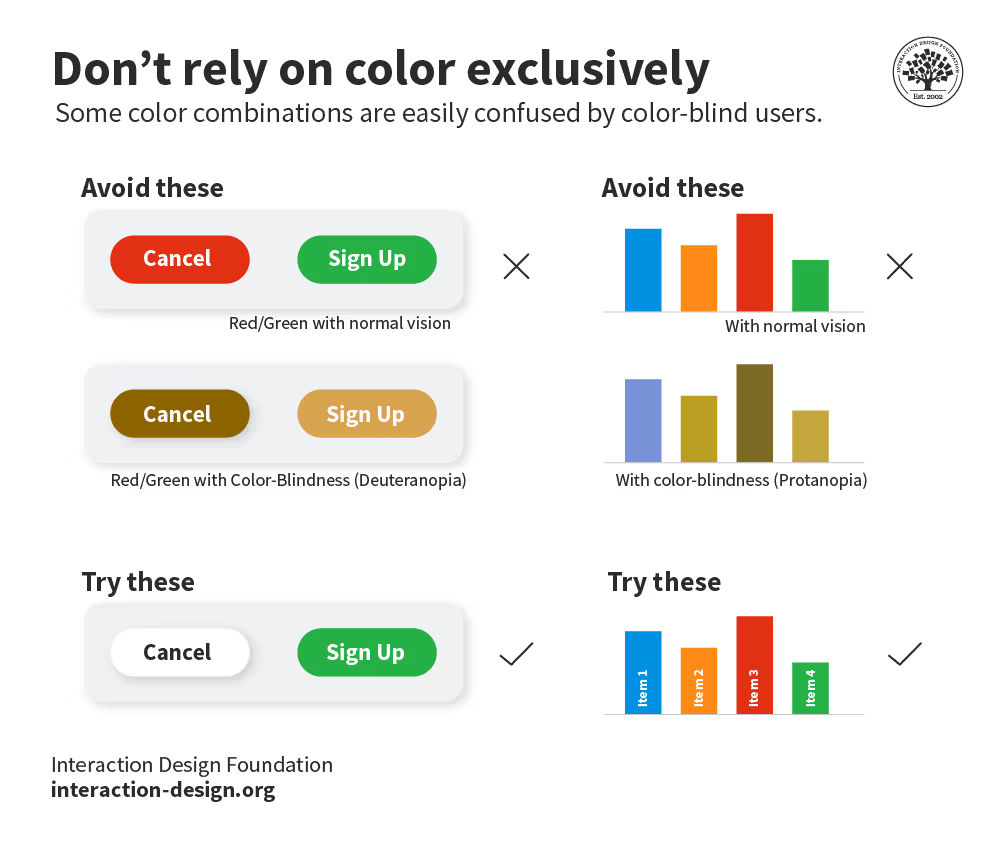
    Color should never be used alone to convey meaning. Here, text labelling appears in the chart bars as well as the color coding.

    © Interaction Design Foundation, CC BY-SA 4.0

  • Reference shapes to help guide users (e.g., “Click the square button”).

  • Consider how screen readers handle forms. Label fields and provide descriptions for screen readers using tags. Make the tab order visually ordered. Assign an ARIA required or not required role to each field (know how to use ARIA). Avoid the asterisk convention; label fields explicitly as mandatory or optional.

  • Use proper HTML elements in lists. Don’t put them on the same line as text.

  • Present dynamic content carefully, including slideshows. Consult ARIA standards for overlays, etc.

  • Validate markup using the W3 standards site to ensure all browsers can read your code.

  • Offer transcriptions for audio resources, captions/subtitles for video.

  • Make content easily understandable – simpler language reaches more users, as do effective information hierarchy, progressive disclosure and prompting.

  • Try using your design without a mouse. It can be hard to scroll.

  • Use tools such as WAVE and Color Oracle to test your design’s accessibility.

Frank Spillers explains how accessibility affects usability and search engine optimization (SEO).

Transcript

Naturally, you should test for accessibility on users themselves. Note that while it’s impossible to cover all use cases, your efforts to reach all users can yield many rewards—sometimes in unexpected areas.

Questions About Accessibility?
We've Got Answers!

What are accessibility settings?

Accessibility settings in websites and apps allow users with different abilities and preferences to access and interact with the content and functionality of the website or app. Accessibility settings can include things like changing the font size, color contrast, text spacing, keyboard navigation, screen reader support, captions, transcripts, and alternative text for images. Accessibility settings can help users who have visual, auditory, cognitive, motor, or other impairments to use the website or app more easily and effectively. Accessibility settings can also benefit users with temporary or situational difficulties, such as using a device in bright sunlight or with one hand.

What is web accessibility?

Web Accessibility, as explained by Frank Spillers, is fundamentally about optimizing the user experience for everyone, ensuring that content is accessible, inclusive, and user-friendly, regardless of ability. It aligns closely with usability, focusing on simplifying layouts, optimizing code, and making content more understandable and navigable, especially for screen-reader users. Accessibility goes beyond usability, emphasizing the need for content to be usable and accessible to all, promoting equality and inclusion on the web. Further insights on web accessibility can be gleaned from this video by Frank Spillers.

Transcript

What is accessibility testing?

Accessibility testing is done to make your web and mobile apps usable to people with special needs such as vision, hearing, and other cognitive impairments. It is an important part of the development process, as it helps to ensure that all users can access and use a website or application, regardless of their abilities. Accessibility testing also helps to comply with legal and ethical standards, such as the Web Content Accessibility Guidelines (WCAG) 2.x, which provide a set of criteria for making web content accessible to people with disabilities.

Accessibility testing can be done using both automated and manual methods. Automated tools can help to identify some common accessibility issues, such as missing alt text for images, insufficient colour contrast, or keyboard accessibility. However, automated tools cannot detect all accessibility problems, such as how well the content is structured, how clear the instructions are, or how the website or app works with assistive technologies. Therefore, manual testing is also necessary to check the usability and functionality of the website or app from the perspective of different users with different needs and preferences. Manual testing can involve using accessibility checklists, testing with assistive technologies, such as screen readers or speech recognition software, and testing with real users who have disabilities or impairments.

Transcript

What are the four areas of accessibility?

The four areas of accessibility stated in the Web Content Accessibility Guidelines (WCAG) are:

- Perceivable: Users must be able to perceive the content and functionality of the website or app using one or more of their senses. This means providing alternatives for non-text content, such as images, audio, and video, using captions, transcripts, and alt text. It also means ensuring that the content is presented in a way that is compatible with different devices and assistive technologies, such as screen readers, magnifiers, or braille displays.

- Operable: Users must be able to operate the website or app using different input methods, such as keyboard, mouse, touch, voice, or gesture. This means ensuring that the website or app is responsive, navigable, and compatible with different browsers and platforms. It also means providing mechanisms to help users find and access the content they need, such as menus, headings, links, search functions, and skip links.

- Understandable: Users must be able to understand the content and functionality of the website or app. This means ensuring that the content is clear, concise, and consistent, using plain language, appropriate grammar, and punctuation. It also means providing feedback, guidance, and error messages to help users complete tasks and avoid mistakes.

- Robust: Users must be able to access the website or app using current and future technologies. This means ensuring that the website or app is built using valid and standard code that follows web development best practices. It also means testing the website or app with different browsers, devices, and assistive technologies to identify and fix any compatibility issues.

These four areas are based on four design principles that describe what web content must be to be considered accessible. Each area has a number of guidelines and success criteria that specify how to meet the principles in practice. You can find more information about the WCAG on the W3C website.

Use our step-by-step guide to ensure accessibility in your products.

Advance Your Career With This Free Template for “Steps to Ensure Accessibility in Your Products”
Steps to Ensure Accessibility in Your Products
Optional
Optional
We respect your privacy
Get 1 powerful email each week: Learn Design and AI From the Best.

What Is Good Accessibility?

Good accessibility is the practice of designing and developing websites, apps, and other digital products and services that are usable by everyone, regardless of their abilities or disabilities. Good accessibility means that people can access and use the content and functionality of a website or app in a similar amount of time and effort as someone who does not have a disability. It also means that people are empowered, independent, and not frustrated by something that is poorly designed or implemented

To acheive good accessibility youYou should aim for user-friendly designs with clear, purpose-driven content that meets the needs of all users, including those with cognitive impairments or who may not have extensive experience with the language used. Understanding the various disability types, such as those illustrated in our video with Frank Spillers, CEO of Experience Dynamics, can help address around 80% of accessibility issues by focusing on core accessibility needs like screen reader compatibility and keyboard access.

Transcript

What Is an Example of Poor Accessibility?

An example of poor accessibility is a website lacking alt text for images that are meant to convey meaning. This causes issues for visually impaired users relying on screen readers. Poor accessibility is a crucial aspect of design failures and bad user experience, as illustrated in our articles on Bad UX Examples and Design Failures. Explore more on the impact of inadequate accessibility at interaction-design.org.

What Is the Difference Between Accessibility and Inclusion?

Accessibility is focused on making products and content usable for everyone, regardless of disabilities, by removing barriers and optimizing user experiences. It emphasizes adaptations and adjustments to accommodate individual needs. On the other hand, inclusion refers to the proactive design of products, services, and environments that are welcoming and usable for a diverse range of people from the start. It’s about designing universally, considering all users' varied needs and preferences. For deeper insights and understanding of inclusion, refer to this article on Inclusive Design.

Where to Learn About Accessibility?

To learn about accessibility, consider enrolling in the Accessibility: How to Design for All course offered by Interaction Design Foundation. This course provides extensive insights into designing universally to ensure content and products are accessible to everyone, including people with disabilities. You will learn about the principles and guidelines of accessibility, allowing you to create inclusive user experiences. The course suits designers, developers, and anyone interested in making the digital world more inclusive.

Transcript

Earn a Gift, Answer a Short Quiz!

1
2
3
4
1
2
3
4
Question 1
Question 2
Question 3
Get Your Gift

Question 1

What is the primary goal of accessibility in design?

1 point towards your gift

  • To enhance the visual appeal of products
  • To ensure as many people as possible can use various products
  • To increase the speed of product development

Question 2

Which of the following is a direct benefit of designing for accessibility?

1 point towards your gift

  • Increased need for customer service
  • Improved search engine optimization (SEO)
  • Reduction in production costs

Question 3

How does accessibility influence the overall quality of design?

1 point towards your gift

  • It enhances usability for all users.
  • It focuses only on auditory improvements.
  • It limits creative options for designers.

All Free IxDF Articles on Accessibility

Read full article
Stand on the shoulders of giants and follow international standards - Article hero image

Stand on the shoulders of giants and follow international standards

Design can be very subjective. This leads UX practitioners facing criticism and a lack of credibility when dealing with other more scientific disciplines. Fortunately, you can rely on international standards to refer to and easily bridge the gap. The ISO 9241 Standard for the Ergonomics of Human-Sy

Social shares
699
Published
Read Article
Read full article
Revolutionize UX Design with VR Experiences - Article hero image

Revolutionize UX Design with VR Experiences

Is the future of user experience design (UX design) going to exist on screens or will it find immersive, three-dimensional spaces as its main home? You can design for both views—and interactions—within a digital environment that’s boundless in virtual reality (VR), so read on to find five fundamenta

Social shares
650
Published
Read Article
Read full article
How to Handle Designer Bias When Designing for Accessibility - Article hero image

How to Handle Designer Bias When Designing for Accessibility

Having a good understanding of your users’ needs and wants is crucial in all design processes. Guessing at user needs is dangerous, since it’s nearly impossible to separate your own experience and point of view from those of your users. This is especially true when designing for accessibility, since

Social shares
637
Published
Read Article
Read full article
How to Improve Your UX with HCI Insights - Article hero image

How to Improve Your UX with HCI Insights

Design plays a role that’s utterly crucial in our daily lives—it bridges functionality with aesthetics to meet user needs. In product development, it’s design that determines how user-friendly and appealing a product is. The field of human-computer interaction (HCI) is foundational to UX design. To

Social shares
625
Published
Read Article
Read full article
How to Elevate Your Mobile UX Strategy - Article hero image

How to Elevate Your Mobile UX Strategy

Mobile makes up over 54% of global website traffic—a far different world from how users used to get online. Exceptional mobile user experiences are a prime necessity in our digital-first world, and the quality of a mobile user experience can mean the difference between a product that thrives and one

Social shares
478
Published
Read Article
Read full article
Keyboard Navigation and Data Entry - Article hero image

Keyboard Navigation and Data Entry

Forms are an essential part of many interactions, but good form layout and clear labels are only part of the picture. Forms also need to work in all the ways users interact with them. Not everyone uses a mouse. Many users rely on keyboards, whether by preference, motor impairments, or because they u

Social shares
215
Published
Read Article

10 Principles of Accessibility

10 Principles of Accessibility

Do you want to get serious about accessibility, but finding it hard to know where to start? In this video, we’ll take you through 10 principles you can use to get started creating great accessible websites and interfaces that are digitally inclusive right now. Among other things, you’ll learn how to create ALT text that makes sense (and why it’s important), why hamburger menus are not optimal for accessibility, and what it means to embrace the access attitude.

Transcript

The Takeaway

When you want to start designing for accessibility, you should consider these 10 principles:

  • If you can’t consider all disabilities, consider blindness. 80 percent of accessibility issues are related to blindness.

  • Remember to create good ALT text (text that describes images).

  • Remember to tag hamburger menus so screen readers don’t skip over them.

  • Don’t place important content out of the way where screen readers won’t find it.

  • You have to test for accessibility with real users.

  • Don’t disable zoom in mobile interfaces.

  • Accessibility is cheaper when it’s done up front – and easily learned.

  • Be aware of visual bias, but remember that accessibility does not mean ugly design.

  • Check mobile accessibility separately.

  • Embrace the all-access attitude.

References

© Ralph Aichinger, CC BY 2.0

Course: “Accessibility - How to Design for All”

39% of Today's Skills Will Change by 2030

The World Economic Forum expects 39% of today's skills to be transformed or become outdated by 2030.

The good news is that jobs in UX / UI design and AI are among the fastest-growing professions globally.

Build Skills That Keep You Relevant

Privacy Settings

By using this site, you accept our Cookie Policy and Terms of Use.
Customize
Accept all

Be the One Who Inspires

People remember who shares great ideas.

Share on:

Academic Credibility — On Autopilot

Don't waste time googling citation formats. Just copy, paste and look legit in seconds.