Flowcharts in UX/UI Design

Your constantly-updated definition of Flowcharts in UX/UI Design and collection of videos and articles.
Be a conversation starter: Share this page and inspire others!

197 Shares

What are Flowcharts in UX/UI Design?

Flowcharts are diagrams of user flows and tasks in processes. Designers use these versatile tools and activity diagrams from UML to visualize the interactions in designs and present easy-to-understand maps of designs to stakeholders. They connect labeled, standardized symbols with lines to show everything users might do in interactive contexts.

“You cannot understand good design if you do not understand people; design is made for people.”

— Dieter Rams, Industrial designer and pioneer of “less is better”
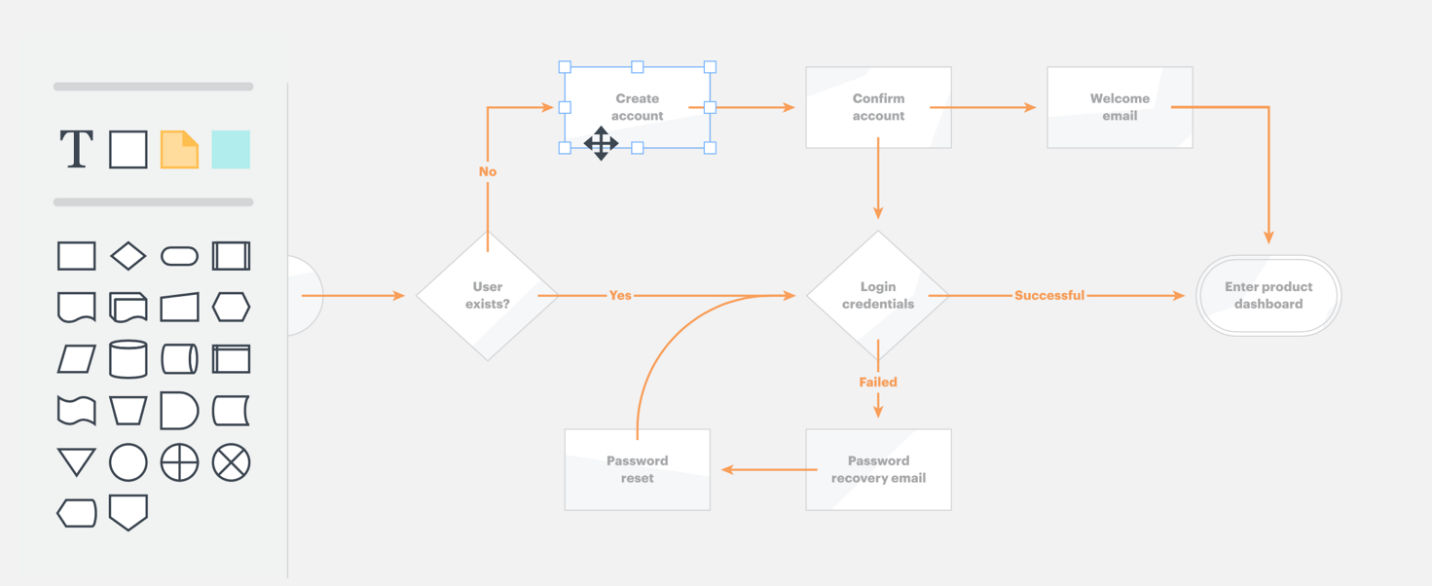
Author/Copyright holder: LucidChart. Copyright terms and license: Fair Use.

LucidChart has an intuitive drag-and-drop interface.

Map out New Designs and Evaluate Existing Ones using Flowcharts

In user experience (UX) design, designers use flowcharts mainly to plot how users move through an interface, such as an app, to achieve their goals (e.g., to purchase clothes online). They describe the relationships between pages/screens and show all interactive possibilities—the starting points, actions required, moments of decision and endpoints—as users encounter and use interfaces. They also aim to account for the various factors that impact users’ interactions (e.g., busy environments). Since flowcharts are highly visual, they’re valuable reference points throughout projects. Flowcharts have a standardized set of:

  • Symbols – e.g., typically, a rectangle represents an app screen or webpage, a line with an arrow represents the direction users move through a user flow, and a diamond represents a decision point where users must choose an option (so, it’s crucial to show all the directions users can go); and

  • Conventions – e.g., you present data from left to right and top to bottom.

As paper or digital deliverables, flowcharts represent interactive sequences at two levels:

  1. User flows – Overviews of the complete process of steps which users might take through a whole app, service or website (e.g., from accessing a webshop’s landing page to confirming purchases).

  2. Task flows – Specific aspects of the above (e.g., just the checkout process).

You can use flowcharts especially effectively to:

  1. Visualize interactions for ideation and exploration – to:

    1. Account for all possible interactions (at the start of the design process, to shape user flows).

    2. Evaluate your design’s efficiency – anytime during or after development: e.g., you can spot a user flow which takes too many steps to complete, or a dead end that will likely confuse users (e.g., if they find an item is out of stock and don’t know what to do next).

  2. Present to stakeholders:

    1. Internal stakeholders can examine flowcharts whenever you need approval/buy-in before you can proceed to prototyping (although time and resource constraints might suggest you just prototype instead).

    2. External stakeholders (e.g., clients) can understand your project’s scale and scope when you use a flowchart to help explain how your UX deliverables will ultimately appear.

Paper flowcharts work best here, as your design team can easily erase and redraw these while bouncing ideas around.

Create Flowcharts that Capture Realistic Experiences and All Possibilities

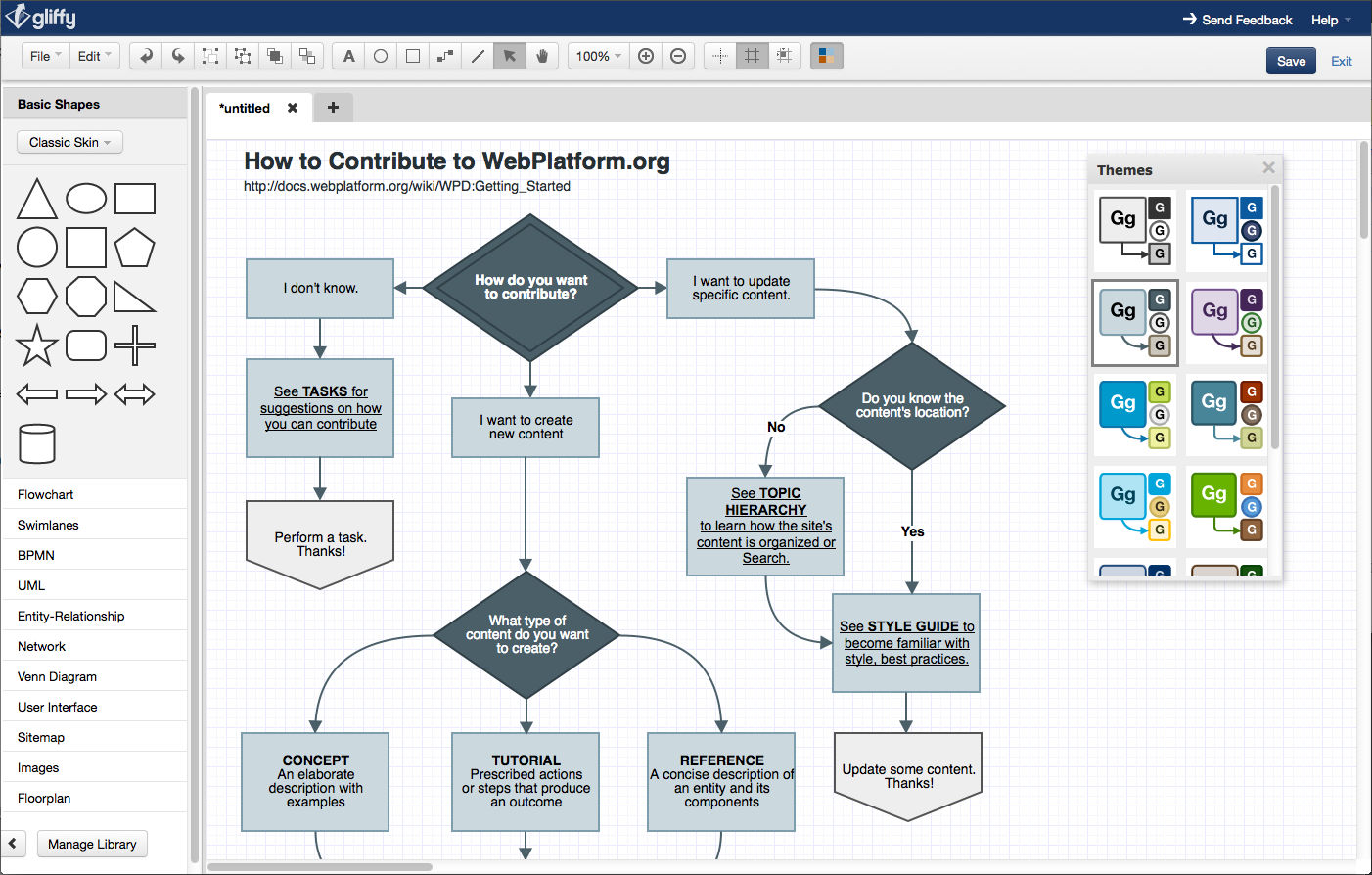
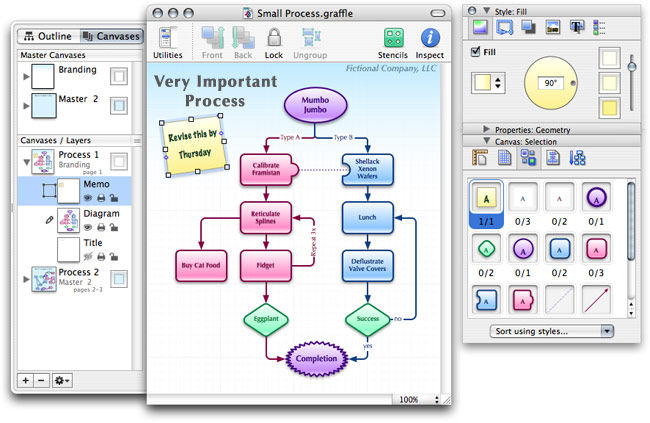
You can dissect even the most complex processes into concise, attractive flowcharts on paper or choose from an array of software to create digital flowcharts with varying features (e.g., real-time collaboration, drag-and-drop functionality). Popular flowcharting UX tools include LucidChart and OmniGraffle (OmniGraffle is only available on MacOS).

Also, there are activity diagrams from UML (Unified Modeling Language: a general-purpose modeling language for visualizing, constructing, and documenting software systems). Activity diagrams look similar to flow charts and designers use them to show user flow. Designers and design teams have dozens of tools that support them, such as Umbrello UML Modeller, a KDE-based UML modeling tool, and ArgoUML, a Java-based UML modeling tool.

To accurately reflect what your users experience via a flowchart, it’s best to define:

  1. Your users and their needs through UX research.

  2. What you want your solution to help users do.

  3. The tasks and subtasks from point of entry to goal completion: From a point of entry (e.g., when a user Googles and finds your site), you can break each task (e.g., purchasing tickets) into 4–8 subtasks (from clicking an app to completing checkout).

  4. Decision points: Discover the critical times users must think about their activities, and how they’ll form impressions of your product/design.

  5. Various paths users can take: Map out task sequences so users can complete actions easily and without wondering how to use your product/design. (In seamless experiences, users shouldn’t have to think about your product/design itself.)

Your best flowcharts will show you empathize with users at each stage corresponding to their customer journey maps.

Wireflows

Wireflows are alternatives to flowcharts. You need wireframing skills to make these. In a wireflow, you connect the wireframes of various pages according to how users will interact with them. So, you’ll have a more realistic-looking, concrete solution to ideate with and spot potential usability problems. However, wireflows tend to be better for showing more simple designs—e.g., websites with few pages—and they can vary in fidelity, or sophistication. Also, in dynamic solutions where users can interact in more complicated workflows, flowcharts may be better due to limitations in space or resources. Plus, there’s a risk of overinvestment (especially earlier on) if your high-fidelity wireflow gets discarded.

Overall, always approach flowcharts with a designer’s eye for visuals. When you diagram tasks thoughtfully for users’ contexts, you can better plan how to help them move as easily as possible from start to finish in each process. Your solutions will therefore more likely resonate with users.

Questions About Flowcharts?
We've Got Answers!

Why do UX designers use flowcharts?

UX (user experience) designers use flowcharts to visualize how users interact with a product or system. Flowcharts map out decision points, actions, and paths in a clear, step-by-step format. This helps designers spot confusion, remove extra steps, and ensure smooth navigation.

Each element, like boxes for actions or diamonds for decisions, shows how users move through a process. Designers use flowcharts to plan user journeys, sign-up flows, error handling, or even feature logic. These diagrams make complex systems easy to understand and share with stakeholders.

By using flowcharts early in the design process, UX teams can catch usability issues before they become expensive. Flowcharts also support alignment across teams by creating a shared visual language.

Get more in the flow of understanding user flows.

How is a UX flowchart different from a user journey map?

A UX flowchart differs from a user journey map in purpose, structure, and detail. Flowcharts focus on system logic; they show all possible user actions and decision points in a product or interface. Each step is technical and precise, which designers and developers often use to build or refine flows like onboarding, checkout, or account recovery.

A user journey map, in contrast, captures the user’s experience, including thoughts, emotions, goals, and pain points across multiple touchpoints. Journey maps are more narrative and holistic; designers and teams use them to empathize with users and identify opportunities for improvement.

Flowcharts answer: “What happens if the user clicks X?”

Journey maps ask: “How does the user feel and think while doing X?”

Both tools are valuable, but they serve different stages of UX strategy.

Explore some fine points about how to clarify journeys in Customer Journey Maps — Walking a Mile in Your Customer’s Shoes.

What does a typical UX flowchart include?

A typical UX flowchart includes key elements that outline how users interact with a system step-by-step. These elements help designers visualize functionality and decision-making paths clearly and logically.

  1. Start/End points: Represented by ovals, these mark where the user journey begins and ends (e.g., “User visits homepage” or “User completes purchase”).

  2. Processes: Shown as rectangles, they describe user actions or system operations (e.g., “Enter email” or “Display confirmation”).

  1. Decisions: Shaped as diamonds, these indicate branching logic (e.g., “Is password valid?”). They lead to different outcomes based on user input.

  2. Connectors/Arrows: These define flow direction, ensuring the map reads logically from one step to the next.

  1. Labels: Clear labels on all elements explain the action or choice. In UX, this clarity supports collaboration between designers, developers, and stakeholders.

Flowcharts streamline design discussions, reduce ambiguity, and help ensure smooth user navigation.

Enjoy our article The UX Tools Series: Great Tools for Mind Mapping, Flow Charting and Site Mapping to get more out of flowcharting.

When should I create a flowchart in a UX project?

Create a flowchart early in your UX project—ideally during the planning or wireframing stage—to clarify how users interact with your product. This tool helps visualize user paths, decision points, and system responses before any work on high-fidelity designs begins.

Use flowcharts when you’re:

  • Defining task flows like sign-ups, checkouts, or error handling.

  • Explaining logic-heavy features such as onboarding or filters.

  • Collaborating with developers on implementation details.

  • Identifying redundant steps or potential user drop-offs.

Flowcharts are especially useful when redesigning existing flows or integrating new features. They support agile sprints by aligning teams on user logic. They also reveal usability issues before design or development investment kicks into gear.

The earlier you chart flows, the fewer problems you’ll face down the line and more money you’ll save.

Wireframes are basic visual representations of a user interface; they outline the structure and layout of a webpage or app. They’re a key deliverable of UX (user experience) design. See how wireframing fits into the design process in this video:

Transcript

How do flowcharts help identify pain points in UX?

Flowcharts help identify pain points in UX by making user interactions, decisions, and system responses visible in a step-by-step format. When designers map out every screen, choice, and outcome, it becomes easier to spot friction—like extra steps, confusing loops, or dead ends.

For example, if a checkout flow includes three decision points before payment, the chart exposes this complexity. Designers can then ask, “Do we need all of these?” or “Where might users drop off?” Similarly, missing feedback steps or unclear outcomes become obvious when they’re absent from the chart.

Flowcharts also support usability testing and journey mapping by aligning what should happen with what users actually do. They provide a visual reference to compare intended paths with real behavior, highlighting mismatches or breakdowns and aligning team members around an empathic view of users’ needs.

Watch this video to see why designing with empathy is a must for successful products and services:

Transcript

How do I build a user flow chart for a mobile app?

To build a user flow chart for a mobile app, follow these steps to map out clear, intuitive interactions:

  1. Define the user’s goal: Start with what the user wants to achieve, like “Book a ride” or “Upload a photo.” This becomes the endpoint of your flow.

  1. List key actions: Break the journey into individual steps (e.g., “Open app,” “Tap menu,” “Select option”). Think from the user’s perspective, not the system’s.

  1. Map screens and decisions: Use shapes, rectangles for screens, diamonds for decisions. For example, “Login?” might lead to either “Enter credentials” or “Sign up.”

  1. Use clear labels and arrows: Arrows show direction; labels explain actions. Make the flow readable and logical.

  1. Test and iterate: Share the chart with your team. Test with users to find missing steps or unclear logic.

This process helps UX and UI designers align on app behavior before wireframing, saving time and reducing errors such as—a particularly problematic one—assuming mobile solutions are like desktop ones, only shrunken for smaller screens.

Consider the users’ context of use, for a fuller picture of what users likely go through, which Alan Dix, Author of the bestselling book “Human-Computer Interaction” and Director of the Computational Foundry at Swansea University, discusses in this video:

Transcript

What common mistakes should I avoid in UX flowcharts?

Avoid these common mistakes in UX flowcharts to ensure clarity, accuracy, and usability:

  1. Skipping user decisions: Omitting decision points oversimplifies the flow. Always include “yes/no” steps like “Is the password valid?” to reflect real user paths.

  1. Overloading the chart: Cramming too many steps or details makes the chart hard to follow. Focus on critical flows and split complex processes out into linked diagrams.

  1. Vague labels: Generic labels like “Continue” or “Process” confuse teams. Use clear, descriptive terms that explain exactly what happens.

  1. Disconnected flows: All elements must link logically. Unconnected shapes or floating steps lead to ambiguity in how users progress.

  1. No feedback loops: Users often make mistakes or change paths. Ignoring “back” actions or error states leaves gaps in the design logic.

  1. Missing or inadequate error handling: Be sure to anticipate and deal with all the errors that may occur in a process. They are much easier to plan for in a flowchart than in software development, and poor or absent error handling is a major, often-overlooked issue.

By avoiding these mistakes, you can build flowcharts that support better decision-making and smoother user experiences.

Explore some points about how to clarify journeys in Customer Journey Maps — Walking a Mile in Your Customer’s Shoes.

How much detail should I include in a UX flowchart?

Include just enough detail in a UX flowchart to explain the user’s path clearly, without overwhelming viewers. The level of detail depends on the chart’s purpose:

  • High-level flowcharts map out major screens and decisions (e.g., “Login → Home → Checkout”). Use these in early planning to align teams and define scope.

  • Detailed flowcharts drill into specific steps like input validation, error messages, or conditional logic. Use these during wireframing or handoff to developers.

Don’t add visual elements like button positions or colors—these belong in wireframes. Instead, focus on actions, decisions, and system responses. Use labels that are precise but brief (e.g., “User taps ‘Next’” or “System checks password”).

If in doubt, start simple and layer detail as the design progresses.

Enjoy our article The UX Tools Series: Great Tools for Mind Mapping, Flow Charting and Site Mapping to get more out of flowcharting

How can a UX flowchart guide interface layout decisions?

A UX flowchart guides interface layout decisions by showing the sequence of actions users take and the decisions they face. This helps designers understand what content, components, and interactions each screen must support.

For example, if a flowchart shows that “Choose Plan” leads to “Enter Payment Info,” the interface must support a clear transition to reduce user friction. Decision points like “Is the user logged in?” help define conditional layouts; one for new users, another for returning ones.

Flowcharts also clarify where users may loop back, need feedback, or require support. This ensures interfaces include confirmation messages, error handling, or quick exits—features often missed without flow visualization.

Designers use these insights to prioritize UI elements, reduce cognitive load, and streamline user goals.

Enjoy our article The UX Tools Series: Great Tools for Mind Mapping, Flow Charting and Site Mapping to get more out of flowcharting.

How do UX flowcharts support collaboration between designers and developers?

UX flowcharts support collaboration between designers and developers by acting as a shared blueprint for how a system behaves. They outline every user action, decision point, and system response in a visual format that’s easy for both teams to understand.

For designers, flowcharts clarify what screens and interactions they need to create. For developers, they provide the logic behind those screens, like when to validate input, load content, or handle errors. This reduces miscommunication and prevents surprises during handoff.

Flowcharts also highlight edge cases, alternative flows, and conditions early, before design or code begins. This leads to faster feedback, fewer revisions, and smoother implementation.

By aligning on logic before visuals, teams save time and build more consistent, user-friendly products.

Discover more about cross-functional collaboration in this video with Laura Klein: Product Management Expert, Principal at Users Know, Author of Build Better Products and UX for Lean Startups:

Transcript

What are some helpful resources about flowcharts and flowcharting?

Relevant Subjects

Unified Modeling Language: Activity Diagrams

Activity diagrams are visual flowcharts that show how things get done in a system or business process. They map out the sequence of actions, decisions, and conditions that control how work flows from start to finish. Think of them like a roadmap that shows all the steps someone or something needs to take to complete a task, including what triggers each action and what happens when decisions need to be made.

Activity diagrams use standard symbols and connecting arrows to represent different elements: activities (the work being done), partitions (which often represent different departments or people responsible for different parts), and edges (the connections that show how the flow moves from one step to another). You can organize the diagram using "swimlanes" – horizontal or vertical sections that show which person or department is responsible for each action. The diagrams can handle complex scenarios including parallel activities happening at the same time, decision points where the flow branches in different directions, and even interruptions that can stop or redirect the entire process.

Blogs

b13 GmbH. (2024, February 29). Mastering web flow charts: Design, development, and utilization in UX. b13 Blog.

This blog article from b13 GmbH offers a practical guide to creating and utilizing flowchart diagrams within UX design workflows. It outlines best practices for mapping user journeys, structuring navigation, and visually articulating decision paths. The post emphasizes the strategic value of flowcharts in communicating design logic clearly across multidisciplinary teams and enhancing user interface development.

Earn a Gift Earn a Gift, Answer a Short Quiz!

1
2
3
4
1
2
3
4
Question 1
Question 2
Question 3
Get Your Gift
Interaction Design Foundation logo

Question 1

What is the main purpose of flowcharts in UX design?

1 point towards your gift

  • To create long-term project timelines
  • To document the design thinking process
  • To visualize user flows and tasks within processes
Interaction Design Foundation logo

Question 2

Which symbol typically represents a decision point in a flowchart?

1 point towards your gift

  • Circle
  • Diamond
  • Rectangle
Interaction Design Foundation logo

Question 3

What is the difference between user flows and task flows in flowcharts?

1 point towards your gift

  • User flows are for individual tasks, and task flows cover the entire app.
  • User flows are only for mobile apps, and task flows are for websites.
  • User flows cover the entire process, and task flows focus on specific aspects.

Learn More About Flowcharts in UX/UI Design

Make learning as easy as watching Netflix: Learn more about Flowcharts by taking the online IxDF Course AI for Designers.

Why? Because design skills make you valuable. In any job. Any industry.

In This Course, You'll

  • Get excited about how quickly you can create meaningful results when you turn AI into your new superpower and combine it with timeless human-centered design skills. As an AI-powered designer, you’ll increase your efficiency and salary potential, and as a human-centered leader, you'll create ethical AI-powered products people love. When these abilities come together, you’ll solve real-world problems faster and make the world a better place. Studies show that AI-driven productivity accelerates growth and helps busy professionals like you achieve in months what once took decades. Now's the time to master the powerful combination that keeps you in demand.

  • Make yourself invaluable when you use AI to accelerate repetitive tasks while applying your irreplaceable human strengths like empathy, critical thinking, and ethical decision-making to guide every solution toward what users truly need. Leaders seek professionals with AI fluency because the people who thrive combine AI efficiency with deep human insight that machines can't replicate. You'll learn to automate and streamline repetitive tasks, make data-driven decisions, and optimize your workflow for innovation and cost savings. No matter your background, you'll easily master AI for Designers. With clear guidance and real-world examples, you'll apply your skills immediately.

  • Gain confidence and credibility as you master the art of text prompts for design. You'll learn how to deal with bias in AI and how to use AI tools to create intuitive user experiences that drive business success. You can fast-track your portfolio of AI-enhanced case studies with step-by-step guidance, practical tips for real-life projects, and downloadable templates. This course gives you the hands-on knowledge to guide AI with timeless human-centered design skills, and that's how you stay in demand in any industry!

It's Easy to Fast-Track Your Career with the World's Best Experts

Master complex skills effortlessly with proven best practices and toolkits directly from the world's top design experts. Meet your experts for this course:

  • Ioana Teleanu: Founder of UX Goodies and former Lead Product Designer (AI) at Miro.

  • Rafael Hernandez: Lead Product Designer at T. Rowe Price.

  • Jarvis Moore: Senior Design Lead, Design Systems at Microsoft.

  • Niwal Sheikh: Product Design Lead at Netflix.

  • Vitaly Friedman: Senior UX Consultant for the European Parliament, and Creative Lead, Smashing Magazine.

  • Pablo Stanley: Designer and CEO of Musho and Lummi.

Get an Industry-Recognized IxDF Course Certificate

Increase your credibility, salary potential and job opportunities by showing credible evidence of your skills.

IxDF Course Certificates set the industry gold standard. Add them to your LinkedIn profile, resumé, and job applications.

Course Certificate Example

Be in distinguished company, alongside industry leaders who train their teams with the IxDF and trust IxDF Course Certificates.

Our clients: IBM, HP, Adobe, GE, Accenture, Allianz, Phillips, Deezer, Capgemin, Mcafee, SAP, Telenor, Cigna, British Parliament, State of New York

All Free IxDF Articles on Flowcharts in UX/UI Design

Read full article
The UX Tools Series: Great Tools for Mind Mapping, Flow Charting and Site Mapping - Article hero image
Interaction Design Foundation logo

The UX Tools Series: Great Tools for Mind Mapping, Flow Charting and Site Mapping

Before you start planning for your UX research; you’ll need to start by creating some ideas for your plan. There’s nothing wrong with doing this process by hand. We’ve done many an initial brainstorming session for projects with nothing but a whiteboard or a flipchart. However, there’s also, perhaps

Social shares
545
Published
Read Article
Read full article
What UX Tools Do I Need to Create My Portfolio, and How Do I Learn Them? - Article hero image
Interaction Design Foundation logo

What UX Tools Do I Need to Create My Portfolio, and How Do I Learn Them?

“What UX tools should I learn so that I can build my portfolio?” “How do I learn UX tools?” We get these questions a lot here at the Interaction Design Foundation. If you’re starting out in UX, you might have these burning questions, too. So, here, we’ll go through everything you need to know about

Social shares
669
Published
Read Article

The UX Tools Series: Great Tools for Mind Mapping, Flow Charting and Site Mapping

The UX Tools Series: Great Tools for Mind Mapping, Flow Charting and Site Mapping

Before you start planning for your UX research; you’ll need to start by creating some ideas for your plan. There’s nothing wrong with doing this process by hand. We’ve done many an initial brainstorming session for projects with nothing but a whiteboard or a flipchart. However, there’s also, perhaps, a better way to do this.

Computing tools can’t make the process of idea generation any easier – you’re still going to have to put in the hard mental work. They do make the process of recording what you generate from this work much easier.

You can also then go on to create flow charts that help people visualize your intended processes or the processes of your product. Then, finally, you might want to develop a sitemap to ensure that your information architecture approach remains consistent. So, we’ve taken a look at 5 tools that we think might be useful in this.

Some of these products are free, some have free trials, and others are paid for. We do not explicitly endorse any of these tools for your project – you’ll need to work out what best suits your needs and your project’s needs.

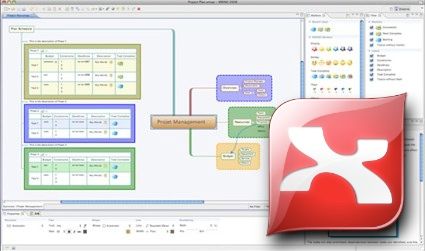
Xmind

Mind mapping has never been so easy; Xmind is completely open source for its most basic version which offers loads of diagramming tools etc. You can also share over a LAN, the web and Evernote. The upgraded versions offer more features and are currently priced at a reasonable $79 for the Plus offering (with export functionality to office software) and Pro which even offers Gantt charts at a very reasonable $99 compared to MS Project’s license cost.

LibreOffice

LibreOffice is the open-source office suite that rivals Microsoft’s offering for flexibility and power. It is 100% free. There are several tools in the suite that may come in handy on your project, but Draw is excellent for sketching ideas and in particular, for flowcharts.

The only thing that holds us back from using LibreOffice more often is the lack of perfect Microsoft compatibility; that shouldn’t put you off with Draw though. Of course, you can also use Google Docs to create flow charts.

Gliffy

Gliffy is a completely online diagramming tool, and the most basic functionality is free; you can also get a plugin to transfer diagrams to your Wiki. Gliffy was developed by Atlassian.

ConceptDraw

ConceptDraw is a premium product with pricing for the MindMapping tool starting at $199 and another $199 for their Project tool, and another $219 for their project software. They offer a dual licensing scheme with both Windows and Apple installations included in the single fee. If you think you need all their functions – you can buy the whole suite for $499.

OmniGraffle

Flow charts, mind maps, and more can be created in OmniGraffle but only if you’re a Mac user – PC folks need not apply. There is a free trial but after 14 days you’ll need to unlock it by paying $99 for the basic version or $199 for the Pro version. There’s also no trial version of the $49.99 iPad version. 

Image Sources:

Wikipedia (link to image)
Gliffy (link to image)
Tuaw (link to image)
Archiproducts (link to image)
Andrzej Tokarski (link to image)

Feel Stuck?
Want Better Job Options?

AI is replacing jobs everywhere, yet design jobs are booming with a projected 45% job growth. With design skills, you can create products and services people love. More love means more impact and greater salary potential.

At IxDF, we help you from your first course to your next job, all in one place.

See How Design Skills Turn Into Job Options
Privacy Settings
By using this site, you accept our Cookie Policy and Terms of Use.
Customize
Accept all

Be the One Who Inspires

People remember who shares great ideas.

Share on:

Academic Credibility — On Autopilot

Don't waste time googling citation formats. Just copy, paste and look legit in seconds.